Leopold Manuals & User Guides
Leopold is a premier manufacturer of high-end mechanical keyboards featuring genuine Cherry MX switches and durable PBT double-shot keycaps.
About Leopold manuals on Manuals.plus
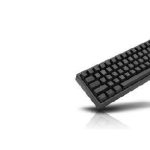
Leopold Co., Ltd. is a renowned manufacturer specializing in premium mechanical keyboards, widely acclaimed by enthusiasts for their superior build quality and typing experience. Unlike mass-market peripherals, Leopold focuses on essential performance, utilizing genuine German Cherry MX switches and high-quality 1.5mm PBT Double-Shot keycaps that resist wear and shine. Their product lineup includes full-size, tenkeyless, and compact layouts, such as the FC900R, FC750R, and the popular FC660 series.
The brand offers both wired and Bluetooth wireless models (featuring the 'BT' suffix), which support multi-pairing for seamless connectivity across devices. Users can further customize their typing environment using the onboard DIP switches to alter key functions without software. The manuals provided in this category cover setup, Bluetooth pairing, and maintenance for Leopold's diverse range of mechanical keyboards.
Leopold manuals
Legújabb kézikönyvek innen: manuals+ ehhez a márkához összeállítva.
LEOPOLD FC630MBT Series 60 Keys Bluetooth Mini Mechanical Keyboard Felhasználói kézikönyv
LEOPOLD FC660MBT sorozatú Bluetooth billentyűzet felhasználói kézikönyv
LEOPOLD FC650MDSBT sorozat 65 gombos mechanikus mini Bluetooth billentyűzet használati útmutató
LEOPOLD FC900RBT Bluetooth billentyűzet használati útmutató
LEOPOLD FC660C 66 gombos elektrosztatikus kapacitív minibillentyűzet
LEOPOLD FC980C 98 gombos elektrosztatikus kapacitív billentyűzet
Leopold FC660C 66 billentyűs elektrosztatikus kapacitív mini billentyűzet - Termékáttekintésview
Leopold FC660M sorozatú mechanikus billentyűzet felhasználói útmutató
Leopold FC660C 66 billentyűs elektrosztatikus kapacitív mini billentyűzet felhasználói kézikönyv
LEOPOLD FC980C elektrosztatikus kapacitív billentyűzet kézikönyv és specifikációk
Leopold FC630MBT Bluetooth mechanikus billentyűzet felhasználói kézikönyv
Leopold FC660MBT mechanikus mini Bluetooth billentyűzet felhasználói kézikönyv
Leopold FC750RBT sorozatú 87 billentyűs mechanikus Bluetooth billentyűzet felhasználói kézikönyv
Leopold FC900RBT sorozatú 104 billentyűs mechanikus Bluetooth billentyűzet felhasználói kézikönyv
Leopold manuals from online retailers
Leopold FC730MBT V2 Bluetooth Mechanical Keyboard User Manual
Leopold FC980M mechanikus billentyűzet felhasználói kézikönyv
Leopold FC900RBT V2 Mechanical Keyboard User Manual
Leopold FC660M Vapor 65% mechanikus billentyűzet felhasználói kézikönyv
Leopold FC630MBT 60% Bluetooth Mechanical Keyboard User Manual (Cherry MX2A Red)
Leopold FC 750R PD Mechanical Keyboard User Manual
Leopold FC900R PD 104-Key Mechanical Keyboard User Manual
Leopold FC650MDS fehér kék csillag PD 65% Double Shot PBT mechanikus billentyűzet Cherry MX fekete Felhasználói kézikönyv
Leopold FC900RBT V2 Bluetooth Mechanical Keyboard User Manual
Leopold FC980MBT Two Tone White Bluetooth PD Double Shot PBT Mechanical Keyboard User Manual
Leopold FC980M mechanikus billentyűzet felhasználói kézikönyv
Leopold FC750R PD Mechanical Keyboard User Manual
Leopold support FAQ
Gyakori kérdések a márka kézikönyveivel, regisztrációjával és támogatásával kapcsolatban.
-
How do I pair my Leopold Bluetooth keyboard with a device?
Turn on the Bluetooth switch on the back of the keyboard. Press the pairing button (often located on the back) or use the specific Fn combination (e.g., Fn + Z) to enter pairing mode. Select the keyboard model (e.g., FC660MBT) from your device's Bluetooth list and enter the PIN if prompted.
-
What do the DIP switches on the back of the keyboard do?
The DIP switches allow you to customize hardware key functions without software. Common functions include swapping the Caps Lock and Left Ctrl keys, disabling the Windows key, or swapping Alt and Windows keys. Refer to your specific model's manual for exact switch configurations.
-
How can I switch between wired and wireless modes?
If the USB cable is connected, you can often toggle between wired and wireless modes using a specific key combination, such as Fn + B or Fn + G, depending on the model.
-
How do I delete paired devices or reset Bluetooth settings?
Most Leopold Bluetooth keyboards allow you to delete all pairing information by pressing Fn + Tab for several seconds until the LED indicator reacts.