Bevezetés
Thank you for choosing the ProtoArc KM310 Wireless Mechanical Keyboard and Mouse. This combo offers a responsive typing experience with low-profile linear red switches and versatile multi-device connectivity. The ergonomic mouse is designed for comfort and precision. This manual provides detailed instructions for setup, operation, maintenance, and troubleshooting to ensure optimal performance.
Mi van a dobozban

Image: Contents of the ProtoArc KM310 package, including the keyboard, mouse, charging cable, and user manual.
- ProtoArc KM310 Wireless Mechanical Keyboard
- ProtoArc Wireless Mouse
- USB-C töltőkábel
- Felhasználói kézikönyv
Termék végeview
Billentyűzet jellemzők

Kép: Közeli kép view of the ProtoArc KM310 keyboard, highlighting its low-profile keys and linear red switches.
- Low-Profile Mechanikus kulcsok: Equipped with linear red switches for a smooth, quiet, and responsive typing experience.
- Aluminum Top Case: Provides durability and a sleek, modern aesthetic.
- Állítható dőlésszögű lábak: Ergonomically designed with 2-stage foot mats offering 6° and 9° tilt options for comfortable typing.
- Teljes méretű elrendezés: A 108-key layout suitable for office and business use.
Egér tulajdonságai

Image: The ProtoArc KM310 mouse being held, showcasing its ergonomic design for a natural grip.
- 63G Ultra-Lightweight: Reduces hand fatigue during extended use and enhances portability.
- Ergonomikus kialakítás: Contoured shape for a comfortable and natural grip.
- Állítható DPI: Three DPI levels (1000/1600/2400) for tailored control and precision.
- Csendes kattintás: Csendes működésre tervezve.
- Előre/hátra gombok: Integrated for seamless browsing.
Csatlakoztatás és teljesítmény
- Több eszköz csatlakoztathatósága: Connects up to 3 devices via 2.4G USB receiver or Dual Bluetooth (BT1, BT2).
- Újratölthető: Both keyboard and mouse feature Type-C charging. The mouse's USB receiver is stored on its bottom.
- Hosszú akkumulátor élettartam: Up to 150-200 days standby time; 2-3 hours for a full charge.
Beállítási utasítások
1. Az eszközök töltése

Image: The keyboard and mouse are shown connected to power sources via USB-C cables for charging.
- Csatlakoztassa a mellékelt USB-C töltőkábelt a billentyűzet töltőportjához (a felső szélén található) és az egérhez (az elülső szélén található).
- Plug the other end of the cable into a USB power source (e.g., computer USB port, USB wall adapter).
- The indicator lights will show charging status. Allow 2-3 hours for a full charge.
2. Eszközökhöz való csatlakozás

Image: A desk setup showing the ProtoArc KM310 keyboard and mouse connected to a laptop, monitor, and tablet, illustrating multi-device capability.
The KM310 combo supports three connection modes: 2.4G wireless via USB receiver, Bluetooth 1 (BT1), and Bluetooth 2 (BT2).
2.1. 2.4G vezeték nélküli kapcsolat
- Keresse meg az egér alján található rekeszben található USB-vevőegységet.
- Csatlakoztassa az USB-vevőt a számítógép egy szabad USB-portjához.
- Kapcsolja be a billentyűzetet és az egeret a megfelelő bekapcsológombokkal.
- The devices should connect automatically.
2.2. Bluetooth-kapcsolat (BT1 / BT2)
- Kapcsolja be a billentyűzetet és az egeret.
- A billentyűzeten nyomja meg a gombot BT1 or BT2 key (usually located on the number pad, indicated by orange keycaps) to select the desired Bluetooth channel. The indicator light will flash.
- On your device (computer, tablet, etc.), go to Bluetooth settings and search for "ProtoArc KM310 Keyboard" and "ProtoArc KM310 Mouse".
- Select the devices to pair. The indicator light will stop flashing once connected.
- Repeat for a second Bluetooth device using the other BT channel.
2.3. Eszközök közötti váltás
To switch between connected devices, simply press the corresponding connection key on the keyboard (2.4G, BT1, or BT2) and the channel switch button on the bottom of the mouse.
Kezelési útmutató
Billentyűzethasználat
- Gépelés: Az alacsony profifile linear red switches provide a responsive and quiet typing experience.
- Operációs rendszer kompatibilitás: The keyboard is compatible with Windows and Mac OS. Keys like 'Win' and 'Alt' also show 'Option' and 'Cmd' for Mac users.
- A dőlésszög beállítása: Use the adjustable tilt legs on the underside of the keyboard to set your preferred typing angle (6° or 9°).
Egérhasználat
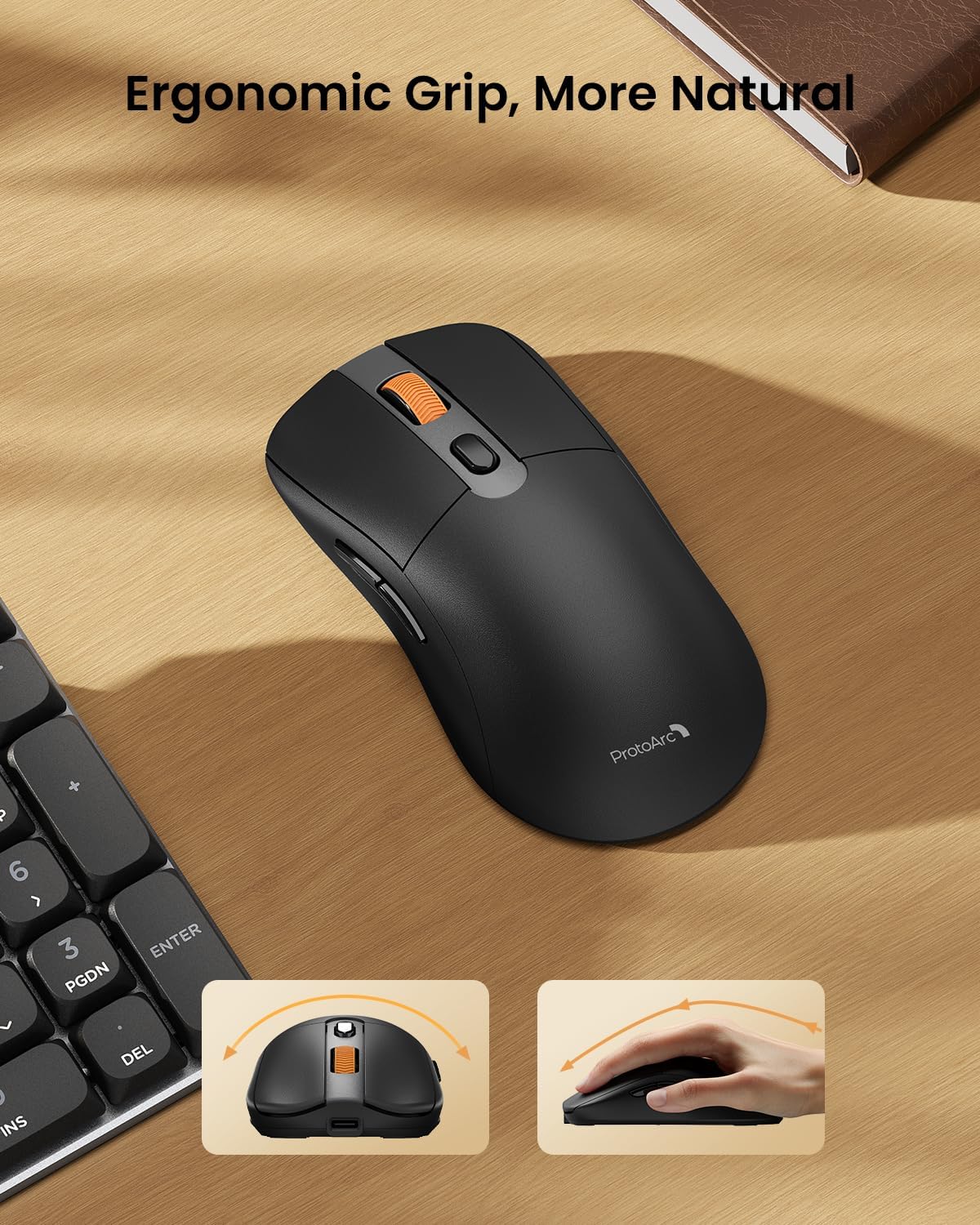
Image: A close-up of the ProtoArc KM310 mouse, illustrating the three adjustable DPI settings (1000, 1600, 2400).
- DPI beállítás: Press the DPI switch button (usually located near the scroll wheel) to cycle through the 3 DPI levels (1000/1600/2400) to match your preference for cursor speed and precision.
- Navigációs gombok: Az egér oldalán található előre és hátra gombokkal gyorsan navigálhat a web böngészők ill file felfedezők.
- Néma kattintások: Az egér csendes kattintású gombokkal rendelkezik a csendes munkakörnyezet érdekében.
Karbantartás
- Tisztítás: Puha, száraz ruhával törölje le a billentyűzetet és az egeret. Makacs szennyeződések esetén enyhén száraz ruhával törölje át.amp Enyhén szappanos kendő használható, ügyelve arra, hogy ne kerüljön folyadék a készülékbe.
- Az akkumulátor gondozása: Recharge the devices when the battery indicator is low. Avoid prolonged exposure to extreme temperatures.
- Tárolás: When not in use for extended periods, turn off the devices to conserve battery life. Store the USB receiver inside the mouse to prevent loss.
Hibaelhárítás
Keyboard/Mouse Not Turning On or Stopping Working
- Ellenőrizze az akkumulátort: Ensure both the keyboard and mouse are sufficiently charged. Connect them to a power source using the USB-C cable.
- Eszközök újrapárosítása:
- For 2.4G connection, ensure the USB receiver is securely plugged in and the devices are set to 2.4G mode.
- For Bluetooth connection, ensure the devices are set to the correct BT channel (BT1 or BT2) and re-pair them through your device's Bluetooth settings.
- Próbáljon ki egy másik kábelt: If charging issues persist, try using a different USB-C cable to rule out a faulty cable.
- Interferencia: Move the devices closer to your computer or away from other wireless devices that might cause interference.
- Kapcsolatfelvétel az ügyfélszolgálattal: If the issue persists, please contact ProtoArc customer support for further assistance.
Műszaki adatok
| Modellszám | KM310 |
| Márka | ProtoArc |
| Szín | Space Gray |
| Csatlakozási technológia | Bluetooth, USB (2.4G vezeték nélküli) |
| Különleges jellemzők | Low Profile Keys, Linear Red Switches, Ergonomic Design, Ultra-Light Mouse, Ergonomic Mouse |
| Kompatibilis eszközök | Laptop, Personal Computer, Tablet (Windows 7/8/10, Mac OS X 10.12, Android 4.3 or higher) |
| Tétel súlya | 2.31 font |
| Csomag méretei | 17.68 x 8.07 x 2.05 hüvelyk |
Garancia és támogatás
The ProtoArc KM310 Mechanical Keyboard and Mouse combo comes with a 2 év garancia.
For any questions, technical support, or warranty claims, please contact ProtoArc customer service:
- Email: support@protoarc.com
- Telefon: +1 866-287-8188
Hivatalos termékvideó
Videó: Hivatalos termékbemutató videóasing the features and design of the ProtoArc KM310 Aluminum Mechanical Keyboard and Mouse.


