1. Bevezetés
Thank you for choosing the ILEBYGO Mini Projector B0F83Q1HHT. This portable projector is designed to provide a versatile entertainment experience with its Android 13 operating system, WiFi 6, Bluetooth 5.0, 1080P Full HD resolution with 4K support, 320 ANSI lumens brightness, 270-degree rotation, auto keystone correction, and autofocus. This manual provides essential information for setting up, operating, and maintaining your projector.
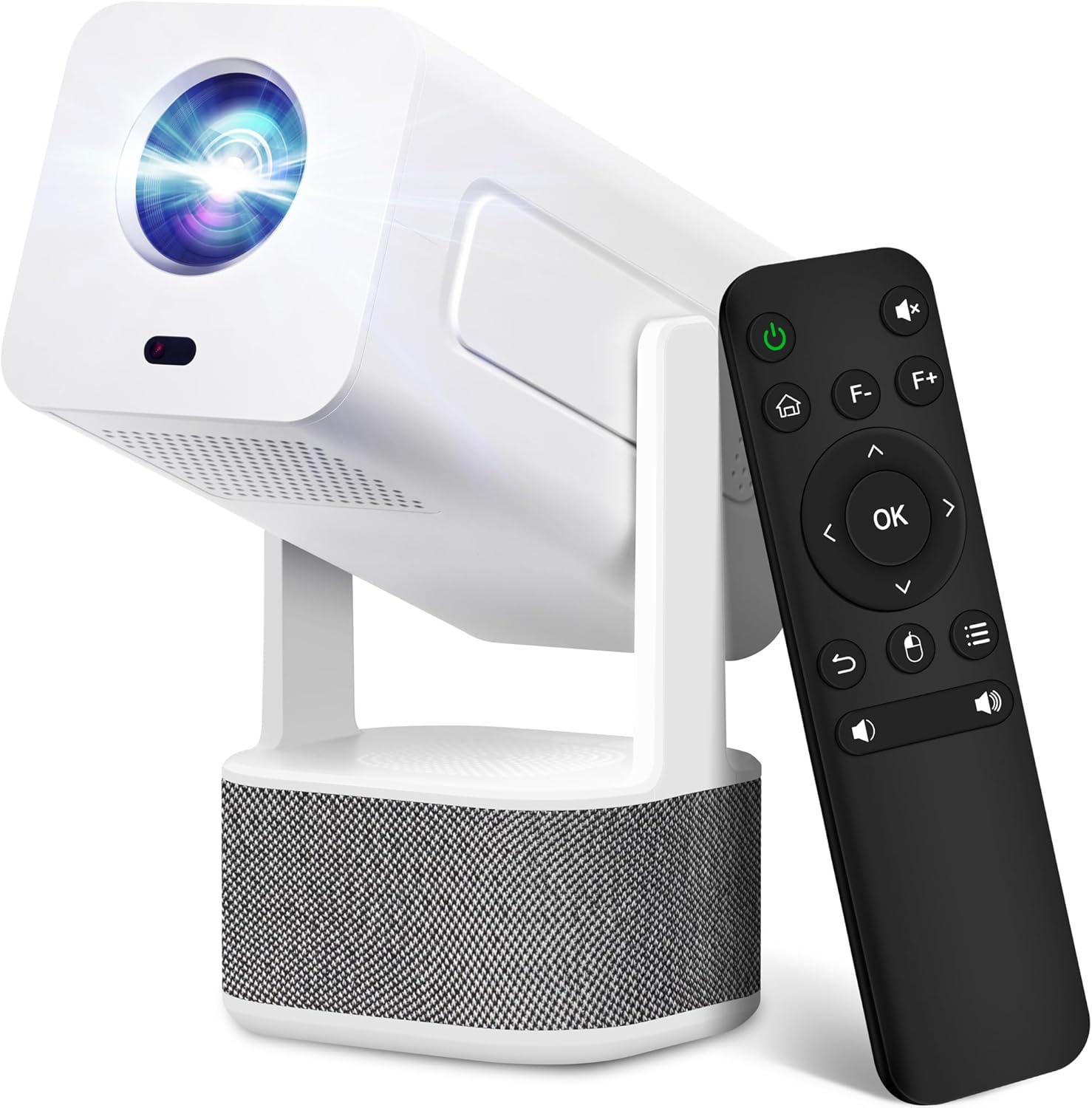
Image 1.1: ILEBYGO Mini Projector and Remote Control
The ILEBYGO Mini Projector B0F83Q1HHT offers a projection size ranging from 30 to 200 inches, making it suitable for various environments from small rooms to outdoor settings. Its dual 5W speakers deliver integrated audio, and multiple connectivity options ensure compatibility with a wide range of devices.
2. A doboz tartalma
Kérjük, ellenőrizze a csomag tartalmát. Ha bármilyen tétel hiányzik vagy sérült, vegye fel a kapcsolatot az ügyfélszolgálattal.
- 1x ILEBYGO Mini Projector
- 1x Felhasználói kézikönyv
- 1x hálózati adapter
- 1x távirányító
3. Beállítási útmutató
3.1. Bekapcsolás
- Csatlakoztassa a hálózati adaptert a projektor DC bemeneti portjához.
- Csatlakoztassa a hálózati adaptert a fali aljzatba.
- Nyomja meg a projektoron vagy a távirányítón lévő bekapcsológombot a készülék bekapcsolásához.

Image 3.1: Projector Connectivity Ports (DC, HDMI, USB, Audio)
3.2. Kezdeti elhelyezés és beállítás
The projector features a 270-degree rotatable design, allowing flexible placement.
- Helyezze a projektort stabil felületre.
- Adjust the projector's angle to direct the image onto your desired projection surface (wall, screen, ceiling).
- The projector will automatically perform keystone correction and autofocus to optimize the image clarity and shape.
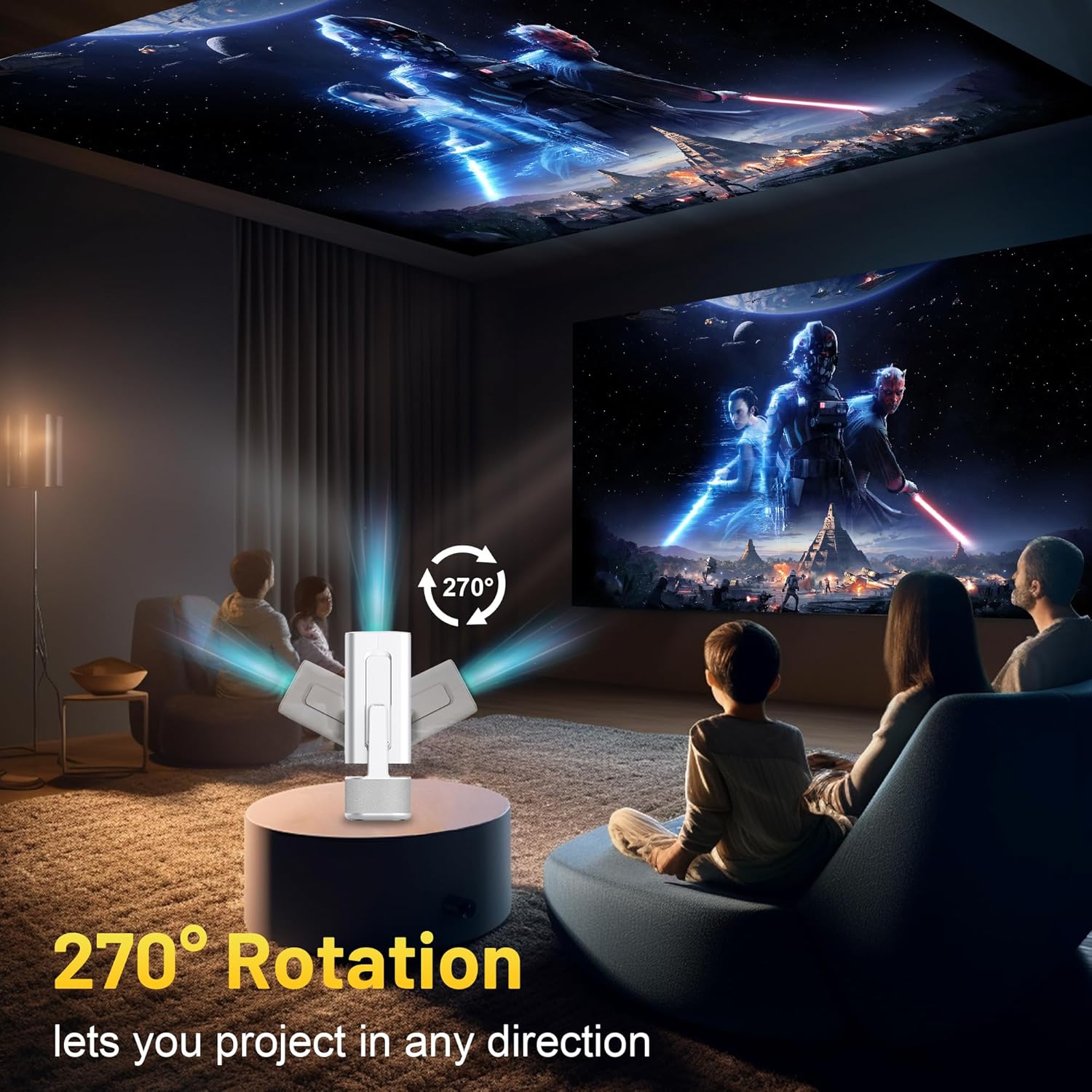
Image 3.2: 270-Degree Rotation Capability
3.3. Hálózati kapcsolat (WiFi)
To access online content and streaming services, connect the projector to a Wi-Fi network.
- A kezdőképernyőről lépjen a „Beállítások” menüpontra.
- Válassza a „Hálózat és internet” lehetőséget.
- Kapcsolja be a Wi-Fi-t, és válassza ki a kívánt hálózatot a listából.
- Írja be a Wi-Fi jelszót, ha a rendszer kéri, és csatlakozzon.

Image 3.3: Dual Band WiFi 6 and Bluetooth 5.0
3.4. Bluetooth párosítás
Pair Bluetooth devices like external speakers or headphones for enhanced audio.
- A kezdőképernyőről lépjen a „Beállítások” menüpontra.
- Select 'Connected Devices' or 'Bluetooth'.
- Kapcsolja be a Bluetooth-t.
- Állítsa a Bluetooth -eszközt párosítási módba.
- Select your device from the list of available devices on the projector screen to pair.
4. Használati útmutató
4.1. Navigáció
Use the included remote control to navigate the projector's interface. The directional buttons, 'OK' button, 'Back' button, and 'Home' button are primary controls.
4.2. App Usage (Android 13)
The projector runs on Android 13 and comes with pre-installed streaming applications.
- From the home screen, select the desired application (e.g., Netflix, YouTube, Prime Video).
- Jelentkezzen be fiókja hitelesítő adataival, ha szükséges.
- Browse and play content as you would on any Android smart device.
- Additional apps can be downloaded from the Google Play Store.

Image 4.1: Built-in Android 13 System with Apps
4.3. Képernyőtükrözés/Átküldés
Mirror content from your smartphone, tablet, or computer wirelessly.
- Győződjön meg arról, hogy a projektor és az eszköz ugyanahhoz a Wi-Fi hálózathoz csatlakozik.
- On the projector, select the screen mirroring/casting application (e.g., Miracast, AirPlay).
- On your mobile device, enable screen mirroring or casting and select the projector from the list of available devices.
4.4. External Device Connection (HDMI, USB)
Connect external devices such as laptops, gaming consoles, or USB drives.
- HDMI: Connect an HDMI cable from your device to the HDMI port on the projector. Select the HDMI input source from the projector's input menu.
- USB: Insert a USB drive into the USB port. The projector's file manager will typically open automatically, allowing you to browse and play media files.

Image 4.2: Multi-Device Compatibility
4.5. Képbeállítás
The projector features automatic adjustments for convenience.
- Automatikus trapéztorzítás korrekció: The projector automatically corrects vertical image distortion. If manual adjustment is needed, navigate to 'Settings' > 'Projection Settings' > 'Keystone Correction'.
- Autofókusz: The image will automatically focus when the projector is moved or powered on. Manual focus adjustment can be found in 'Settings' > 'Projection Settings' > 'Focus'.
- Zoomolás: Adjust the projection size from 50% to 100% without moving the projector. This setting is typically found in 'Settings' > 'Projection Settings' > 'Zoom'.

Image 4.3: Auto Keystone Correction and Autofocus
5. Karbantartás
5.1. Tisztítás
- Lencse: Használjon kifejezetten optikai lencsékhez tervezett puha, szöszmentes kendőt. Kerülje a súroló anyagokat és az erős vegyszereket.
- Külső: A projektor külsejét puha, száraz ruhával törölje át. Ne használjon folyékony tisztítószereket közvetlenül a készüléken.
- Szellőzés: A túlmelegedés elkerülése érdekében győződjön meg arról, hogy a szellőzőnyílások por- és egyéb szennyeződésektől mentesek.
5.2. Tárolás
Használaton kívül a projektort hűvös, száraz helyen, közvetlen napfénytől és szélsőséges hőmérsékletektől távol tárolja. Használja az eredeti csomagolást vagy védőtokot a por felhalmozódásának és a fizikai sérülések elkerülése érdekében.
6. Hibaelhárítás
Az alábbi táblázatban megtalálja a gyakori problémákat és azok megoldásait.
| probléma | Lehetséges ok | Megoldás |
|---|---|---|
| Nincs erő | Power cable not connected; Power outlet malfunction | Győződjön meg arról, hogy a tápkábel megfelelően van csatlakoztatva. Próbáljon ki egy másik konnektort. |
| Nincs kép | Incorrect input source; Device not connected; Projector in standby mode | Select correct input source (HDMI, USB). Ensure external device is powered on and connected. Press power button to wake projector. |
| Homályos kép | Out of focus; Keystone not corrected | Allow autofocus to adjust. Manually adjust focus in settings if needed. Check keystone correction settings. |
| Nincs hang | Volume too low; Muted; External audio device not connected/paired | Increase volume. Unmute projector. Ensure Bluetooth audio device is paired and connected, or external speakers are properly connected via audio jack. |
| Wi-Fi csatlakozási problémák | Incorrect password; Network interference; Router issues | Ellenőrizze a Wi-Fi jelszót. Helyezze a projektort közelebb a routerhez. Indítsa újra a routert. |
| Bluetooth párosítási hiba | Device not in pairing mode; Interference; Device too far | Ensure Bluetooth device is in pairing mode. Keep devices close. Turn off other Bluetooth devices to reduce interference. |
7. Műszaki adatok
| Funkció | Részlet |
|---|---|
| Márka | ILEBYGO |
| Modell | B0F83Q1HHT |
| Kijelző felbontása | 1920 x 1080 (Full HD), 4K Support |
| Fényesség | 320 ANSI lumenek |
| Csatlakozási technológia | Bluetooth 5.0, HDMI, USB, Wi-Fi 6 (2.4G+5G) |
| Operációs rendszer | Android 13 |
| Különleges jellemzők | Auto Keystone Correction, Autofocus, 270° Rotation, Built-in Dual 5W Speakers |
| Vetítési méret | 30''-200'' |
| Képarány | 16:9 / 4:3 |
| Tétel súlya | 2.72 font |
| Csomag méretei | 13.54 x 5.39 x 5.2 hüvelyk |
8. Garancia és támogatás
The ILEBYGO Mini Projector B0F83Q1HHT comes with a standard manufacturer's warranty. Please refer to the warranty card included in your package for specific terms and conditions.
For technical support, troubleshooting assistance, or warranty claims, please contact ILEBYGO customer service through the retailer's platform or the contact information provided in your product documentation.


