Bevezetés
The Microsoft Modern USB-C Headphones are designed to provide high-quality audio for calls, meetings, and general use, particularly optimized for Microsoft Teams. They offer clear sound, a noise-reducing microphone, and intuitive controls for enhanced productivity and communication.
A csomag tartalma
- Microsoft Modern USB-C Headset
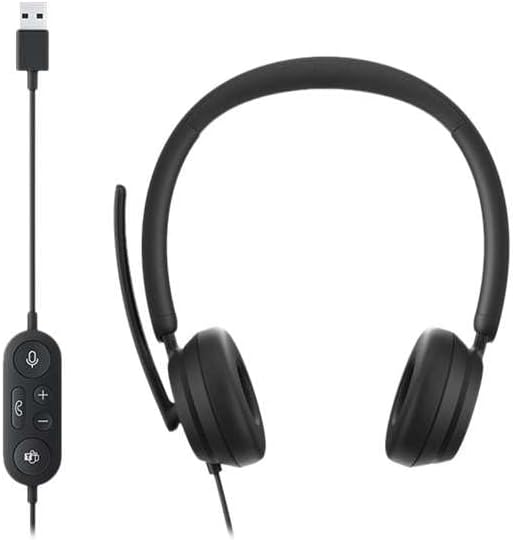
Image: The Microsoft Modern USB-C Headphones, featuring the headset with its attached USB-C cable and inline control unit. The control unit has buttons for mute, volume up/down, call answer/end, and a Microsoft Teams button.
Beállítás
A fejhallgató csatlakoztatása
- Locate an available USB-C port on your computer or compatible device.
- Plug the USB-C connector of the headset into the USB-C port.
- Your operating system (Windows 11/10/8.1/8 or Mac OS 11.0/10.15) should automatically detect and install the necessary drivers.
Mikrofon beállítása
- The microphone boom is flexible. Position it approximately one inch from your mouth for optimal voice pickup.
- The microphone features noise reduction to minimize background distractions during calls.

Kép: Közeli kép view of the earcups and the adjustable microphone boom of the Microsoft Modern USB-C Headphones.
A fülhallgató kezelése
Beépített vezérlők
A beépített vezérlőegység kényelmes hozzáférést biztosít az alapvető funkciókhoz:
- Némítás gomb: Press to mute or unmute your microphone. An indicator light on the control unit may show mute status.
- Hangerő fel / le gombok: Állítsa be a hallgatási hangerőt.
- Hívógomb: Nyomja meg a gombot a hívás fogadásához vagy befejezéséhez.
- Microsoft Teams Button: Quickly launch or bring Microsoft Teams to the foreground.

Kép: Egy részletes view of the inline control unit, showing the microphone mute, volume up/down, call, and Microsoft Teams buttons.
Kényelem és dizájn
The headset features padded and lightweight earcups designed for extended wear, ensuring comfort during long calls or work sessions.

Image: A close-up showing the soft, padded earcup of the Microsoft Modern USB-C Headphones, highlighting its comfortable design.
Karbantartás
- Tisztítás: A fejhallgató tisztításához puha, száraz ruhát használjon. Kerülje az erős vegyszerek vagy súrolószerek használatát.
- Tárolás: Használaton kívül a headsetet hűvös, száraz helyen tárolja. Kerülje a szélsőséges hőmérsékleteket.
- Kábel gondozás: A sérülések elkerülése érdekében ne hajlítsa meg és ne húzza túlzottan az USB-C kábelt.
Hibaelhárítás
| Probléma | Megoldás |
|---|---|
| Nincs hang a fejhallgatóból |
|
| Mikrofon nem működik |
|
| A számítógép nem ismeri fel a fejhallgatót |
|
Műszaki adatok
| Márka | Microsoft |
| Modell neve | I6N-00009 |
| Tétel modellszáma | 2026 |
| Csatlakozási technológia | Vezetékes (USB-C) |
| Fül elhelyezése | Fül fölött |
| Formafaktor | A fülön |
| Anyag | Műbőr |
| Vezérlés típusa | Hívásvezérlés |
| Kompatibilis eszközök | USB-C kompatibilis eszközök |
| Operációs rendszer kompatibilitás | Windows 11 / 10 / 8.1 / 8, Mac OS 11.0/10.15 |
| Termék méretei | 16 x 3.99 x 24.99 cm |
| Tétel súlya | 390 g |
| Vízállósági szint | Vízálló |
Garancia és támogatás
A jótállási információkért és a technikai támogatásért kérjük, forduljon a hivatalos Microsoft támogatási szolgálathoz. website or contact Microsoft customer service. Details regarding specific warranty periods and terms are typically provided with your purchase documentation or available online.
You can find support resources at the official Microsoft support page: support.microsoft.com


