1. Bevezetés
The HighPoint Rocket 1104 is a 4-Port M.2 PCIe Gen3 NVMe Host Bus Adapter (HBA) designed to integrate high-performance NVMe storage into various computing platforms. This HBA is compatible with Windows, macOS, Linux, and VMWare systems, offering a versatile solution for expanding storage capabilities without requiring motherboard bifurcation support.
A legfontosabb jellemzők a következők:
- Supports four (4) M.2 NVMe SSDs on a single PCIe x8 card, allowing for up to 16TB of storage.
- Delivers high sustained transfer performance, suitable for demanding applications.
- Fully compliant with industry-standard PCIe 3.0 and 4.0 slots, eliminating the need for motherboard bifurcation.
- Integrates a high-performance intelligent PCIe switch chipset (Broadcom PEX 8747) to ensure dedicated PCIe x4 lane bandwidth for each M.2 slot.
- Features native, in-box NVMe device driver support across major operating systems.
- Designed with a fan-less cooling system for silent operation.

1.1. ábra: Elöl view of the HighPoint Rocket 1104 HBA, showcasing the large passive heatsink.

1.2. ábra: Szögletes view of the HighPoint Rocket 1104 HBA, highlighting its compact design.
2. Beállítás és telepítés
2.1 A csomag tartalma
Before proceeding with installation, ensure all components are present:
- HighPoint Rocket 1104 HBA
- Gyors telepítési útmutató
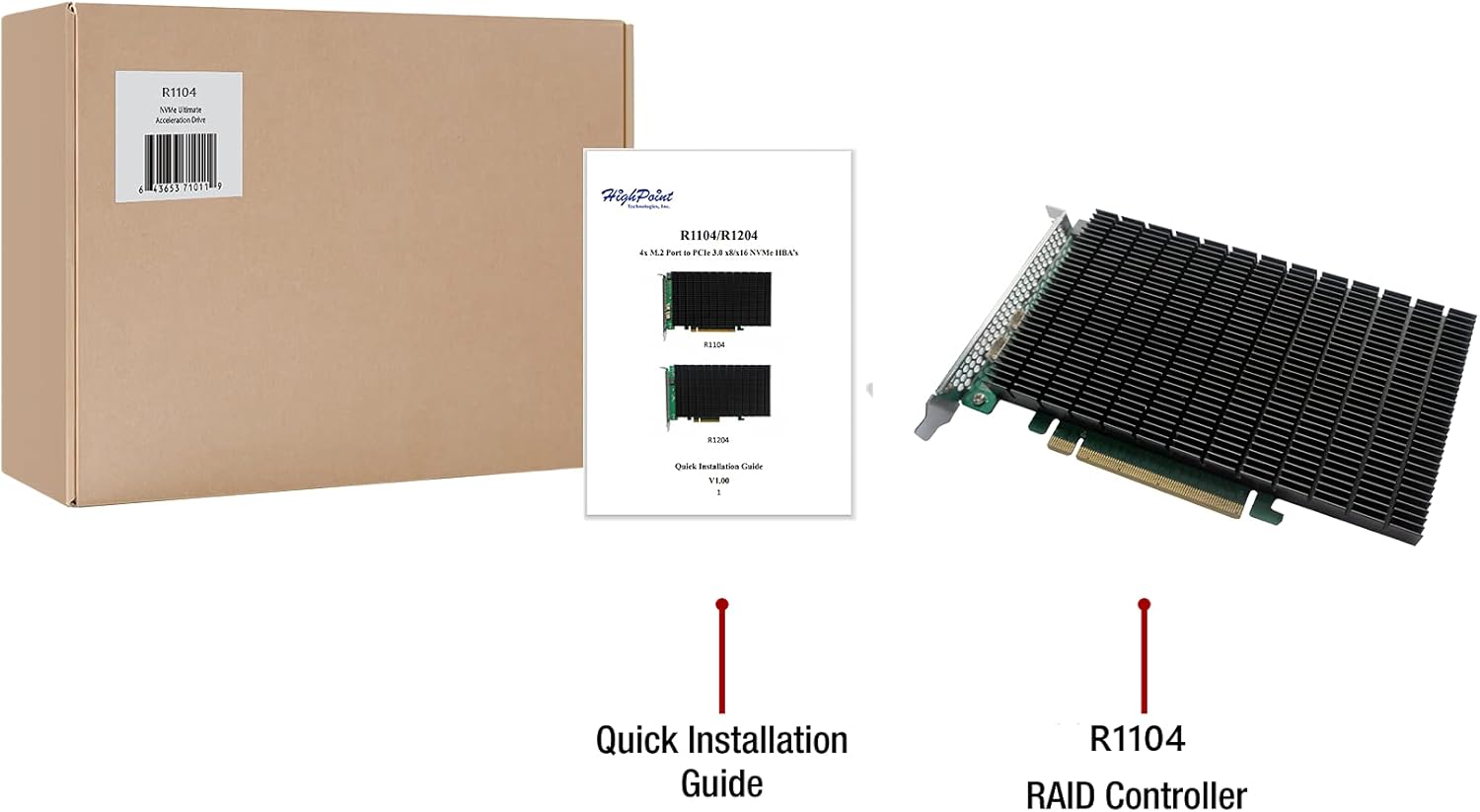
Figure 2.1: The HighPoint Rocket 1104 HBA and its Quick Installation Guide as found in the retail package.
2.2 Installing M.2 NVMe SSDs
- Carefully remove the heatsink from the Rocket 1104 HBA by unscrewing the retaining screws.
- Align your M.2 NVMe SSD with the M.2 slot on the HBA. The Rocket 1104 supports various M.2 form factors (2280, 2260, 2242, 22110).
- Gently insert the M.2 SSD into the slot at an angle, then press it down and secure it with the provided screw or retention clip.
- Repeat for all desired M.2 SSDs.
- Reattach the heatsink, ensuring proper contact with the thermal pads and securing it with the screws.

2.2. ábra: Hátsó view of the HighPoint Rocket 1104 HBA, showing the four M.2 NVMe SSD slots.
2.3 Installing the HBA into your System
- Power off your computer and disconnect the power cable.
- Nyissa ki a számítógép házát.
- Locate an available PCIe 3.0 or 4.0 x8 or x16 slot on your motherboard. The Rocket 1104 requires a PCIe 3.0 x16 host interface, providing x4 lanes of bandwidth to each M.2 port.
- Távolítsa el a megfelelő bővítőhely fedelét a számítógép házáról.
- Carefully insert the Rocket 1104 HBA into the PCIe slot, ensuring it is fully seated. Secure the HBA with the case's retaining mechanism or screw.
- Zárja be a számítógép házát, és csatlakoztassa újra a tápkábelt.

Figure 2.3: Diagram illustrating the PCIe 3.0 x16 host interface and dedicated PCIe 3.0 x4 lanes for each M.2 slot.

2.4. ábra: Oldal view of the HBA, showing the vented bracket for improved airflow.
3. Használati útmutató
3.1 Driver Support
The HighPoint Rocket 1104 HBA is designed for native, in-box NVMe driver support across all major operating systems. This means that once installed, your NVMe SSDs will be automatically recognized by the operating system without the need for manual driver installation.
- Microsoft Windows (Windows 10, Windows Server 2019, and later)
- macOS (Big Sur and later)
- Linux (current distributions including Red Hat Enterprise Linux, SuSE Linux, Ubuntu Linux, CentOS Linux, Debian Linux, Oracle Enterprise Linux, Fedora, FreeBSD)
- VMware vSphere/ESXi
3.2 Tárolás konfigurálása
After the HBA and SSDs are installed and recognized by your operating system, you can configure them using the operating system's standard storage management tools:
- Windows: Use Disk Management to initialize, partition, and format your NVMe SSDs. You can also create RAID 0 arrays using up to 4 M.2 drives.
- MacOS: Use Disk Utility to manage your NVMe SSDs, including creating RAID 0 arrays.
- Linux: Utilize standard Linux tools such as
fdisk,mkfs, ésmdadm(for software RAID) to configure your storage.
Jegyzet:
- The Rocket 1104 HBA does not provide hardware RAID functionality. RAID configurations must be managed via software RAID provided by the operating system.
- For optimal performance, ensure your system's BIOS/UEFI settings are configured to allow proper recognition and operation of PCIe devices. This may involve enabling OPROM devices and disabling Secure Boot on some motherboards.
4. Karbantartás
The HighPoint Rocket 1104 HBA is designed for minimal maintenance due to its fan-less cooling system.
- Hűtés: The HBA features a full-length black-anodized heatsink with high-conductivity thermal pads and a ventilated bracket to efficiently dissipate heat from the hosted SSDs and controller components. This design ensures silent operation.
- Légáramlás: While fan-less, adequate airflow within your computer chassis is crucial for optimal thermal performance and longevity of the HBA and installed SSDs. Ensure your system has proper case ventilation.
- Tisztítás: Periodically inspect the heatsink for dust accumulation. If necessary, gently clean the heatsink fins with compressed air to maintain efficient heat dissipation. Ensure the system is powered off and unplugged before cleaning.

4.1. ábra: Felrobbant view of the Rocket 1104's cooling system, showing the heatsink, thermal pad, and vented bracket.
5. Hibaelhárítás
- HBA nem észlelhető:
- Ensure the HBA is fully seated in a compatible PCIe 3.0 or 4.0 x8/x16 slot.
- Check your motherboard's BIOS/UEFI settings. Some systems may require enabling "OPROM" support or disabling "Secure Boot" for proper detection of PCIe add-in cards. Consult your motherboard manual for specific instructions.
- Verify that the PCIe slot is electrically enabled and not sharing lanes with other devices that might disable it.
- NVMe SSDs Not Recognized:
- Confirm that the M.2 NVMe SSDs are correctly installed and secured on the HBA.
- Ensure the heatsink is properly reattached and making good contact with the thermal pads and SSDs.
- Check your operating system's Disk Management (Windows) or Disk Utility (macOS) to see if the drives are detected but uninitialized. Initialize and format them as needed.
- Performance Issues or Overheating:
- Ensure adequate airflow within your computer case. Poor case ventilation can lead to higher operating temperatures for the HBA and SSDs, potentially impacting performance.
- Verify that the HBA is installed in a PCIe slot that provides the full x16 electrical connection (even if it's a physical x16 slot, some may be electrically x4 or x8). The Rocket 1104 requires a PCIe 3.0 x16 host interface for optimal performance.
- Confirm that the heatsink is clean and free of dust.
6. Műszaki adatok
| Funkció | Specifikáció |
|---|---|
| Márka | HighPoint |
| Modellszám | Rakéta 1104 |
| Hardware Interface | PCI Express 3.0 x16 (electrically x16, providing x4 per M.2 slot) |
| M.2 portok | 4x M.2 NVMe (M-Key) |
| Supported M.2 Form Factors | 2280, 2260, 2242, 22110 |
| Támogatott operációs rendszerek | Microsoft Windows, macOS, Linux (various distributions), VMware vSphere/ESXi |
| Hűtés | Fan-less passive heatsink with thermal pads and vented bracket |
| Termék méretei (HxSzxH) | 7.68 x 0.74 x 4.38 hüvelyk (19.5 x 1.88 x 11.13 cm) |
| Tétel súlya | 1.31 font (0.6 kilogramm) |
7. Jótállási információk
HighPoint products typically come with a limited manufacturer's warranty. For detailed information regarding the warranty period, terms, and conditions for your Rocket 1104 HBA, please refer to the official HighPoint weba termékhez mellékelt jótállási jegyet vagy a weboldalt. Őrizze meg a vásárlást igazoló bizonylatot jótállási igények esetén.
8. Műszaki támogatás
For technical assistance, driver downloads, or further product information, please visit the official HighPoint Technologies webtelek:
You may also find helpful resources and FAQs on their support pages.


