Termék végeview
The AirTies Air 4920 SmartMesh Wi-Fi Extender is designed to expand your home Wi-Fi network, providing enhanced coverage and reducing network congestion. It utilizes advanced mesh technology to ensure seamless and fast Wi-Fi connectivity for all your devices.


A csomag tartalma
Mielőtt elkezdené, győződjön meg arról, hogy minden elem megvan a csomagban:
- AirTies Air 4920 SmartMesh Wi-Fi Extender
- Hálózati adapter
Beállítás és telepítés
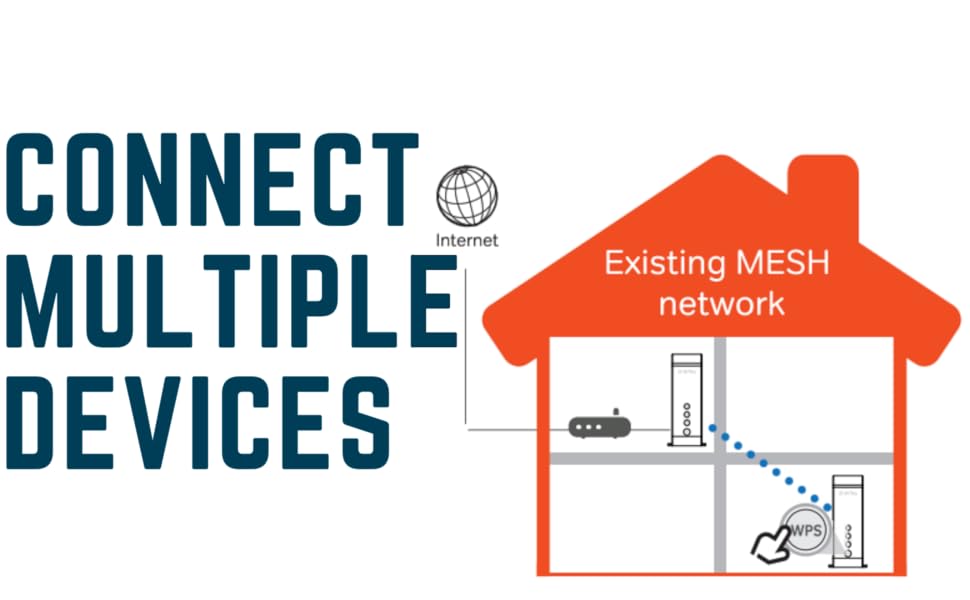
Follow these steps to set up your AirTies Air 4920 SmartMesh Wi-Fi Extender. For optimal performance, it is recommended to use two or more extenders to create a robust mesh network.

- Elhelyezés: Choose a central location in your home, ideally between your existing router/modem and the area where you need improved Wi-Fi coverage. Avoid placing the extender near large metal objects, concrete walls, or other electronic devices that may cause interference.
- Tápfeszültség csatlakozás: Connect the provided power adapter to the extender's power input port (7) and plug it into a standard electrical outlet. The Power LED (3) will illuminate.
- Initial Connection (WPS Method):
- Press the WPS button (4) on the front of the AirTies Air 4920 extender. The WPS LED will start blinking.
- Within two minutes, press the WPS button on your existing Wi-Fi router or modem.
- Wait for the WPS LED on the extender to turn solid, indicating a successful connection. The 2.4 GHz (2) and 5 GHz (1) LEDs will also illuminate, showing active Wi-Fi bands.
- Ethernet-kapcsolat (opcionális): If you wish to connect a wired device, use an Ethernet cable to connect it to one of the RJ45 Ethernet ports (5) on the back of the extender.
Kezelési útmutató
Once installed, the AirTies Air 4920 operates automatically to extend your Wi-Fi coverage. It intelligently selects the best and fastest connection for your devices.
A LED-jelzők megértése
| Indikátor | Állapot | Leírás |
|---|---|---|
| 5 GHz LED (1) | Szilárd zöld | 5 GHz Wi-Fi band is active and operating normally. |
| Le | 5 GHz Wi-Fi band is inactive. | |
| 2.4 GHz LED (2) | Szilárd zöld | 2.4 GHz Wi-Fi band is active and operating normally. |
| Le | 2.4 GHz Wi-Fi band is inactive. | |
| Tápellátás LED (3) | Szilárd zöld | A készülék be van kapcsolva és normálisan működik. |
| Le | A készülék ki van kapcsolva. | |
| WPS LED (4) | hunyorgó | WPS pairing mode is active. |
| Szilárd zöld | WPS pairing successful. | |
| Le | WPS is inactive or pairing failed. |
Smart Home Manager Integration
The AirTies Air 4920 can be managed through the Smart Home Manager app. This application allows you to:
- Personalize and manage your home network.
- View csatlakoztatott eszközök.
- Módosítsa a hálózat nevét és jelszavát.
- Invite guests to your network.
- Access support resources.
Karbantartás
To ensure the longevity and optimal performance of your AirTies Air 4920 SmartMesh Wi-Fi Extender, consider the following maintenance tips:
- Tisztítás: Óvatosan törölje át a készülék külsejét egy puha, száraz ruhával. Ne használjon folyékony tisztítószereket vagy aeroszolos spray-ket.
- Szellőzés: A túlmelegedés elkerülése érdekében győződjön meg arról, hogy a készülék szellőzőnyílásai nincsenek eltakarva.
- Firmware frissítések: Periodically check for firmware updates through the Smart Home Manager app or the official AirTies support website to ensure your device has the latest features and security enhancements.
- Teljesítményciklus: If you experience minor connectivity issues, try power cycling the device by unplugging it from the power outlet for 10 seconds and then plugging it back in.
Hibaelhárítás
If you encounter issues with your AirTies Air 4920, refer to the following common troubleshooting steps:
| Probléma | Lehetséges ok | Megoldás |
|---|---|---|
| Nincs tápellátás LED | A készülék nem kap áramot. | Ensure the power adapter is securely connected to the extender and the electrical outlet. Try a different outlet. |
| WPS LED not solid after pairing | Pairing failed or timed out. | Ensure you pressed the WPS button on both the extender and your router within the 2-minute window. Try repeating the WPS pairing process. Move the extender closer to the router during pairing. |
| Weak Wi-Fi signal or dead zones persist | Suboptimal placement or interference. | Relocate the extender to a more central position, away from obstructions and interference sources. Consider adding additional AirTies extenders for larger homes. |
| Devices not connecting to the extended network | Network configuration issue. | Ensure the extender is successfully paired with your main router. Restart the extender and the client device. Check your router's settings to ensure it allows new devices to connect. |
| Forgot network password | Password forgotten. | Use the Smart Home Manager app to retrieve or change your network password. If unable to access the app, you may need to reset the extender to factory defaults (see below). |
Gyári visszaállítás
If you experience persistent issues or wish to clear all settings, you can perform a factory reset:
- With the extender powered on, use a paperclip or a similar pointed object to press and hold the Visszaállítás gomb (8) on the back of the device for approximately 10 seconds.
- Release the button when the LEDs on the front of the device flash or turn off, indicating the reset process has begun.
- The extender will restart with factory default settings. You will need to reconfigure it as per the "Setup and Installation" section.
Műszaki adatok
| Funkció | Részlet |
|---|---|
| Modell | Levegő 4920 |
| Márka | AirTies |
| vezeték nélküli szabvány | 802.11a/g/n |
| Frekvencia sáv | Kétsávos (2.4 GHz és 5 GHz) |
| Különleges jellemzők | Smart Mesh Technology, Smart Home Manager Integration |
| Csatlakozó típusa | RJ45 Ethernet |
| Méretek (H x Sz x Ma) | 9.17 x 6.3 x 3.11 hüvelyk (a csomag méretei) |
| Súly | 15 uncia |
Garancia és támogatás
For warranty information, technical support, or additional resources, please refer to the official AirTies weboldalon, vagy lépjen kapcsolatba ügyfélszolgálatukkal.
- Hivatalos felhasználói kézikönyv (PDF): PDF letöltése
- Gyártói támogatás: Látogassa meg a AirTies official webtelek támogatásért, GYIK-ért és elérhetőségekért.


