
1. Bevezetés
The ACEMAGIC M1 Mini PC is a compact and powerful desktop computer designed for gaming, business, and everyday use. Featuring an AMD Ryzen 7 7735HS processor, integrated AMD Radeon Graphics, 24GB DDR5 RAM, and a 1TB PCIe SSD, it delivers high performance in a small form factor. This manual provides essential information for setting up, operating, maintaining, and troubleshooting your ACEMAGIC M1 Mini PC.

1. kép: Végeview of the ACEMAGIC M1 Mini PC and its core features.
2. A csomag tartalma
Kérjük, jelölje be a következő tételek jelölőnégyzetét:
- 1 x ACEMAGIC M1 Mini PC
- 1x hálózati adapter
- 1x HDMI kábel
- 1 x rögzítőkonzol csavarokkal
- 1 x Felhasználói kézikönyv
3. Termék végeview
The ACEMAGIC M1 Mini PC is designed for efficiency and connectivity. Its compact size (5.04 x 1.61 x 5.04 inches) makes it ideal for various setups.
Előlap
- 1 x USB-C Port (Data/Display Output)
- 2 x USB-A 3.2 port
- 1 x Audio Jack (Headphone/Microphone)
- 1x bekapcsoló gomb
Hátsó panel
- 4 x USB-A 3.2 port
- 1 db HDMI port (4K@60Hz)
- 1 db DisplayPort (4K@60Hz)
- 1 x 2.5G LAN Port
- 1 x DC-in Port (Power)

2. ábra: Elöl és hátul view of the ACEMAGIC M1 Mini PC highlighting available ports.
4. Beállítási útmutató
- Perifériák csatlakoztatása: Connect your keyboard, mouse, and any other USB devices to the available USB-A ports on the front or rear panel.
- Kijelző csatlakoztatása: Connect your monitor(s) to the HDMI, DisplayPort, or USB-C ports using appropriate cables. The Mini PC supports up to three 4K displays simultaneously.
- Csatlakoztassa az áramot: Plug the power adapter into the DC-in port on the rear panel of the Mini PC, then plug the adapter into a power outlet.
- Bekapcsolás: A Mini PC bekapcsolásához nyomja meg az előlapon található bekapcsológombot.
- Kezdeti Windows beállítás: Follow the on-screen instructions to complete the Windows 11 Pro setup, including network connection (Wi-Fi 6 or 2.5G LAN), user account creation, and privacy settings.
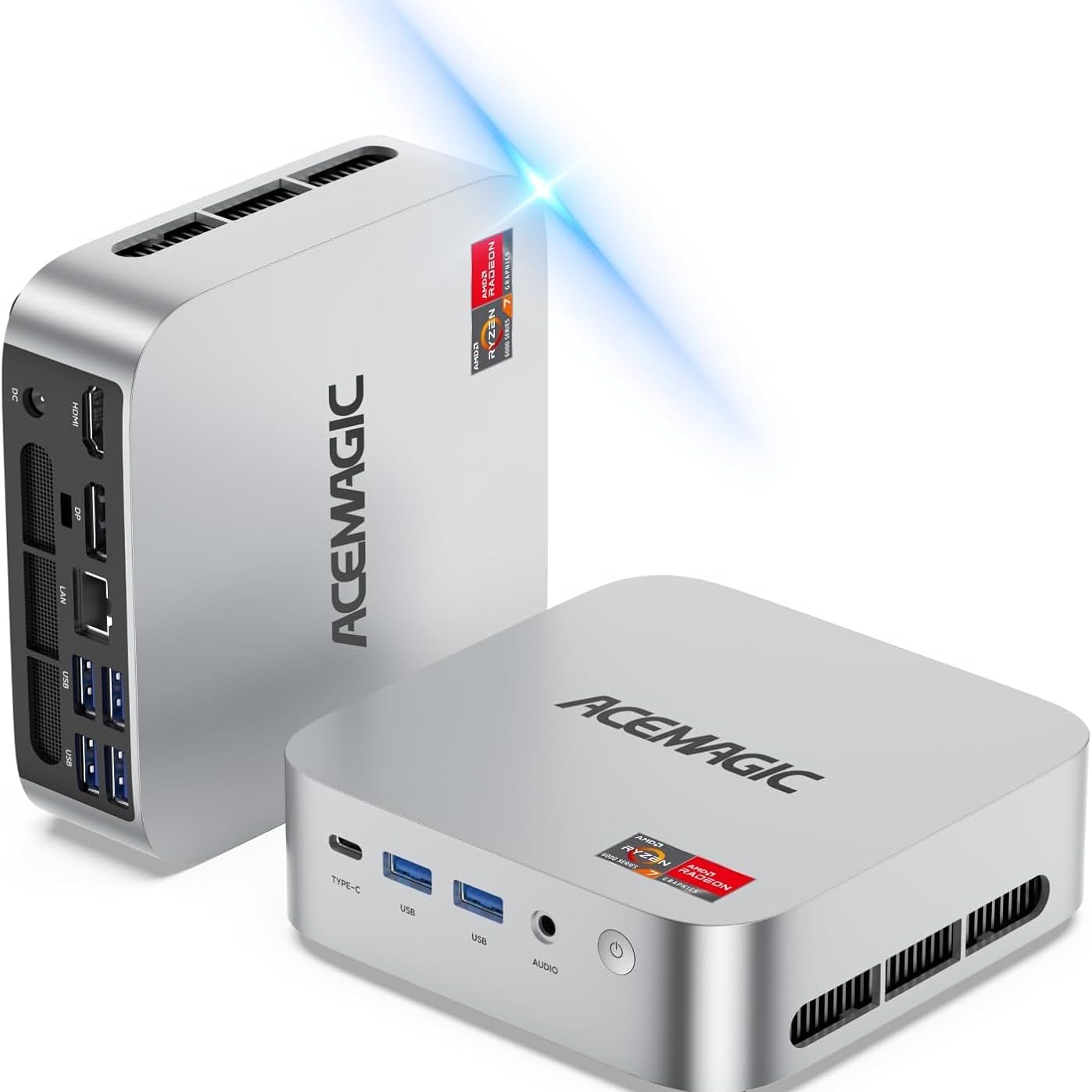
Image 3: ACEMAGIC M1 Mini PC connected and ready for initial setup.
5. Használati útmutató
Your ACEMAGIC M1 Mini PC comes pre-installed with Windows 11 Pro, offering a familiar and intuitive user experience. Use your connected keyboard and mouse for navigation.
- Be-/kikapcsolás: Press the power button once to turn on or off the device.
- Újraindítás: From the Windows Start Menu, select Power > Restart.
- Alvó mód: From the Windows Start Menu, select Power > Sleep.
- Hálózati csatlakozás: Connect to the internet via built-in Wi-Fi 6 (802.11ax) or the 2.5G LAN port for stable and high-speed connections.
- Bluetooth eszközök: Pair Bluetooth 5.2 compatible devices like headphones, speakers, or game controllers through Windows Settings.
6. Tárhely bővítése
The ACEMAGIC M1 Mini PC includes a fast 1TB PCIe SSD. For additional storage, you can expand it:
- 2.5" SSD/HDD Slot: The device features an internal slot for a 2.5-inch SSD or HDD (not included), allowing expansion up to 4TB. Refer to the detailed user manual for installation steps.

Image 4: Illustration of the internal storage expansion capabilities.
7. Kijelző beállítása
Enhance your productivity or gaming experience by connecting multiple displays:
- Háromszoros 4K kijelző támogatás: Connect up to three 4K monitors simultaneously using the HDMI, DisplayPort, and USB-C outputs.
- Konfiguráció: Once connected, configure your display settings through Windows Display Settings (Right-click on desktop > Display settings) to extend or duplicate your desktop.

5. ábra: Példaample of a triple 4K display setup for enhanced work efficiency.
8. Performance & Cooling
The ACEMAGIC M1 Mini PC is engineered for high performance and quiet operation:
- Processzor: AMD Ryzen 7 7735HS (8-core/16-thread, up to 4.75GHz boost clock) for seamless multitasking.
- Grafika: Integrated AMD Radeon Graphics (12CU, 2200MHz GPU Frequency) for immersive visuals.
- RAM: 24GB LPDDR5 5500MT/s memory for smooth operations.
- Hűtőrendszer: Features an ultra-quiet, low-noise cooling system with efficient cooling, a high-speed fan, and dual exhaust, maintaining noise levels around 38 decibels.

6. ábra: Belső view highlighting the efficient and quiet cooling system.
9. Műszaki adatok
| Márka | ACEMAGIC |
| Modell | M1 |
| Operációs rendszer | Windows 11 Pro |
| CPU modell | AMD Ryzen 7 7735HS (up to 4.75GHz) |
| Grafika | Integrated AMD Radeon Graphics (12CU, 2200MHz) |
| RAM | 24 GB-os LPDDR5 5500 MT/s |
| Tárolás | 1TB PCIe SSD (M.2 2280, expandable up to 4TB with 2.5" SSD) |
| Kijelző Kimenet | HDMI, DisplayPort, USB-C (Triple 4K Display) |
| Kapcsolódás | 2.5G LAN, WiFi 6 (802.11ax), Bluetooth 5.2 |
| Portok | 1x USB-C, 6x USB-A, 1x Audio, 1x HDMI, 1x DisplayPort, 1x LAN, 1x DC-in |
| Méretek | 5.04 x 1.61 x 5.04 hüvelyk |
| Súly | 1.2 kilogramm |
10. Hibaelhárítás
- Nincs kijelző: Ensure all display cables are securely connected and the monitor is powered on and set to the correct input source.
- Nincs áram: Verify the power adapter is correctly plugged into both the Mini PC and a working power outlet.
- Hálózati problémák: Check Wi-Fi settings in Windows or ensure the Ethernet cable is properly connected to the LAN port and your router.
- Lassú teljesítmény: Zárja be a felesleges alkalmazásokat, ellenőrizze a Windows frissítéseit, és győződjön meg arról, hogy elegendő szabad tárhely áll rendelkezésre.
11. Garancia és támogatás
Your ACEMAGIC M1 Mini PC is covered by a complete 12-month assurance. For any questions or technical assistance, please contact ACEMAGIC customer service through Amazon, available 7 days a week, 24 hours a day.