
Bevezetés
This manual provides detailed instructions for the setup, operation, maintenance, and troubleshooting of your 3nStar SC415 Handheld Barcode Scanner. The SC415 is designed for efficient and reliable data collection, capable of reading both 1D and 2D barcodes, including those displayed on mobile device screens. Its autosense feature and included base allow for versatile handheld and hands-free operation.
Termékösszetevők
- 3nStar SC415 Handheld Barcode Scanner
- USB kábel
- Scanner Base for hands-free operation
Beállítás
Follow these steps to set up your 3nStar SC415 barcode scanner:
- Csatlakoztassa az USB-kábelt: Insert the USB cable into the port at the bottom of the scanner. Connect the other end of the USB cable to an available USB port on your computer or POS system.
- Illesztőprogram telepítése: The scanner is typically plug-and-play. Your operating system should automatically detect and install the necessary drivers. Wait for the installation to complete.
- Az alap elhelyezése: Place the scanner base on a stable, flat surface. The base allows for hands-free scanning using the autosense feature.
- Place Scanner in Base: Gently place the SC415 scanner into the base. Ensure it is seated securely. The scanner will automatically switch to autosense mode when placed in the base.
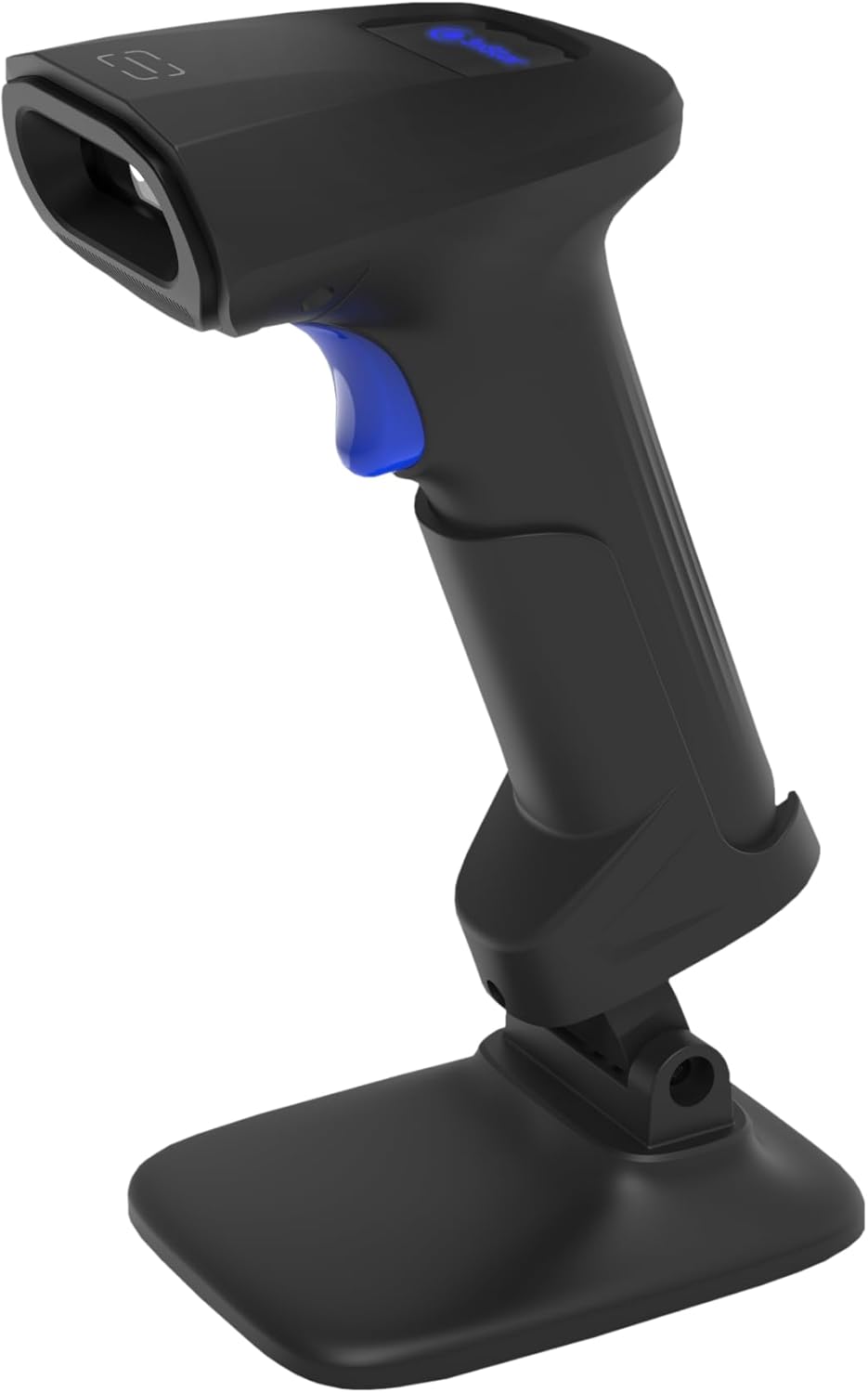
Image: The 3nStar SC415 barcode scanner securely placed in its dedicated base, ready for hands-free operation. The base provides stability and enables the autosense scanning mode.
Kezelési útmutató
The SC415 scanner offers flexible operation modes:
Kézi szkennelés
- Tartsa a szkennert: Fogja meg kényelmesen a szkennert a kezében.
- Aim at Barcode: Irányítsa a szkennelő ablakot a leolvasni kívánt vonalkód felé.
- Nyomja meg a ravaszt: Press the trigger button located on the handle. A red aiming beam will appear.
- Szkennelés megerősítése: Once the barcode is successfully read, the scanner will emit an audible beep and/or a visual indicator (e.g., LED flash). The data will be transmitted to your connected device.

Image: The 3nStar SC415 barcode scanner shown in a handheld position, illustrating how to grip the device for manual scanning. The blue trigger button is visible for activation.
Autosense (Hands-Free) Scanning
When the scanner is placed in its base, it automatically enters autosense mode:
- Elem elhelyezése: Present the barcode of the item in front of the scanner's window.
- Automatikus szkennelés: The scanner will automatically detect the barcode and read it without requiring you to press the trigger.
- Szkennelés megerősítése: A successful scan will be indicated by an audible beep and/or visual cue.
Scanning Mobile Phone Screens
The SC415 is capable of reading barcodes directly from mobile device screens. Ensure the screen brightness is adequate and avoid glare for optimal performance.
Karbantartás
A megfelelő karbantartás biztosítja a szkenner hosszú élettartamát és optimális teljesítményét:
- A szkennelőablak tisztítása: Használjon puha, szöszmentes kendőt, enyhén dörzsöljeampened with water or a mild, non-abrasive cleaner, to wipe the scanning window. Avoid using harsh chemicals, solvents, or abrasive materials, as these can damage the window.
- A C tisztításaasing: Törölje át a külső felületet casinpuha, száraz ruhával.
- Kábelvizsgálat: Periodically check the USB cable for any signs of wear, cuts, or damage. Replace if necessary.
- Tárolás: When not in use, store the scanner in a clean, dry environment away from extreme temperatures and direct sunlight.
Hibaelhárítás
If you encounter issues with your SC415 scanner, refer to the following common problems and solutions:
| Probléma | Lehetséges ok | Megoldás |
|---|---|---|
| A szkenner nem kapcsol be | Az USB-kábel nincs csatlakoztatva vagy hibás. | Ensure the USB cable is securely connected to both the scanner and the host device. Try a different USB port or cable. |
| A szkenner nem olvassa a vonalkódokat | Barcode damaged or poorly printed. Incorrect aiming. Scanner not configured for barcode type. | Ensure the barcode is clear and undamaged. Aim the scanner directly at the center of the barcode. Refer to the programming guide (if available) to ensure the scanner supports the barcode type. |
| No data transmitted after scan | Incorrect interface settings. Host device not ready to receive input. | Verify the scanner is recognized by the host device (e.g., check Device Manager). Ensure the application on your computer is active and ready to receive keyboard input. |
| Autosense mode not working | Scanner not properly seated in base. Autosense feature disabled. | Ensure the scanner is firmly placed in its base. If issues persist, consult the full programming manual for autosense activation settings. |
Ha ezek a lépések nem oldják meg a problémát, kérjük, vegye fel a kapcsolatot az ügyfélszolgálattal.
Műszaki adatok
Key technical specifications for the 3nStar SC415 Handheld Barcode Scanner:
| Funkció | Részlet |
|---|---|
| Modell | SC415 |
| Letapogatási sebesség | 60 Pages per second |
| Csatlakozási technológia | USB kábel |
| Áramforrás | Vezetékes elektromos |
| Kompatibilis eszközök | Desktop, Laptop, POS systems |
| Tétel súlya | 4.5 uncia |
| Csomag méretei | 8.66 x 5.12 x 4.33 hüvelyk |
| Gyártó | 3nStar |
Jótállási információk
The 3nStar SC415 Handheld Barcode Scanner is covered by a manufacturer's warranty. For specific details regarding warranty duration and terms, please refer to the warranty card included with your product or visit the official 3nStar webtelek.
Ügyfélszolgálat
For further assistance, technical support, or inquiries regarding your 3nStar SC415 scanner, please contact 3nStar customer service. You can find contact information on the official 3nStar weba webhelyen vagy a termék dokumentációjában.
Látogassa meg a 3nStar Store for more information on 3nStar products.