
1. Bevezetés
This manual provides detailed instructions for the installation, operation, and maintenance of your Xprinter XP-370B Thermal Barcode Sticker Printer. Please read this manual thoroughly before using the printer to ensure proper functionality and to prevent damage.
2. Biztonsági információk
- A nyomtatót mindig földelt konnektorhoz csatlakoztassa.
- Do not expose the printer to water or high humidity.
- Kerülje a nyomtató közvetlen napfényben vagy hőforrások közelében való elhelyezését.
- Use only Xprinter approved accessories and power adapters.
- Tartsa távol a nyomtatót gyermekektől.
- Ne próbálja meg szétszerelni vagy megjavítani a nyomtatót. Segítségért forduljon szakképzett szervizszemélyzethez.
3. A csomag tartalma
Ellenőrizze, hogy minden elem megvan-e a csomagban:
- Xprinter XP-370B Thermal Barcode Sticker Printer
- Tápadapter
- USB kábel
- Gyors üzembe helyezési útmutató (ha van)
4. Termék végeview
The Xprinter XP-370B is a compact and efficient thermal printer designed for barcode and sticker printing. It features high-speed printing capabilities and supports various connectivity options.

4.1. ábra: Jobb oldali elölnézet view of the Xprinter XP-370B Thermal Barcode Sticker Printer.

4.2. ábra: Oldal view illustrating the power button and top cover key for accessing the media compartment.
5. Beállítás
5.1 Kicsomagolás és elhelyezés
- Óvatosan vegye ki a nyomtatót a csomagolásából.
- Helyezze a nyomtatót stabil, sík felületre, megfelelő szellőzés mellett.
- Ensure there is enough space around the printer for cable connections and media loading.
5.2 A nyomtató csatlakoztatása
- Csatlakoztassa a hálózati adaptert a nyomtató tápcsatlakozójához, majd dugja be egy konnektorba.
- Connect the printer to your computer using the provided USB cable. The printer also supports Serial, Ethernet, and Bluetooth connectivity options depending on the model.
- Turn on the printer using the power button located on the side (refer to Figure 4.2).
5.3 Nyomtatóanyag betöltése
- Press the top cover key (refer to Figure 4.2) to open the printer's top cover.
- Place the roll of thermal labels into the media compartment. The maximum label diameter supported is 100mm.
- Adjust the paper guide to fit the width of your labels securely.
- Pull a small length of labels past the print head.
- Zárja le a felső fedelet, amíg a helyére nem kattan.
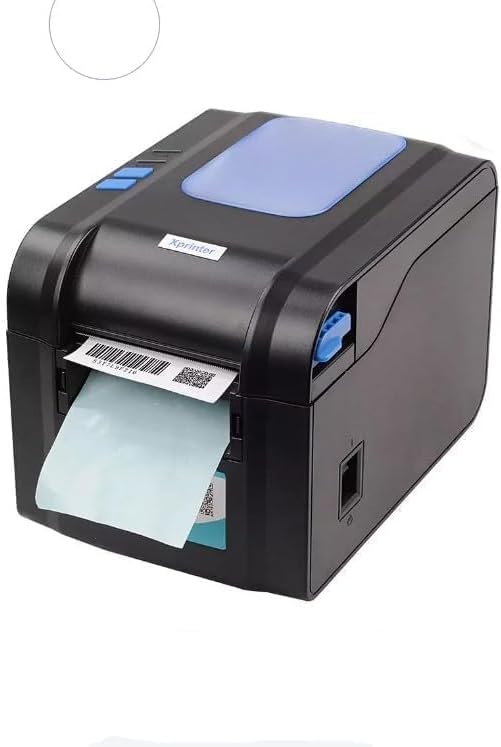
Figure 5.3: The printer demonstrating a label being fed out after printing.
5.4 Illesztőprogram telepítése
- For Windows systems, insert the driver CD (if provided) or download the latest drivers from the official Xprinter webwebhely. A telepítéshez kövesse a képernyőn megjelenő utasításokat.
- For Android and iOS devices, download the appropriate printing application from your device's app store.
6. Használati útmutató
6.1 Alapvető nyomtatás
- Győződjön meg arról, hogy a nyomtató be van kapcsolva, és csatlakozik az eszközhöz.
- Nyissa meg a dokumentumot vagy alkalmazást, amelyből nyomtatni szeretne.
- Select the Xprinter XP-370B from your list of available printers.
- Adjust print settings such as label size, orientation, and density as needed.
- Initiate the print command. The printer will begin printing at speeds up to 152mm/s.
7. Karbantartás
7.1 A nyomtató tisztítása
- Tisztítás előtt kapcsolja ki és húzza ki a nyomtatót a konnektorból.
- Használjon puha, szöszmentes kendőt dampened with isopropyl alcohol to gently clean the print head.
- Clean the exterior of the printer with a soft, dry cloth.
- Ne használjon súroló hatású tisztítószereket vagy oldószereket.
8. Hibaelhárítás
- A nyomtató nem válaszol: Check power connection, USB/Serial/Ethernet/Bluetooth connection, and ensure drivers are correctly installed.
- Gyenge nyomtatási minőség: Clean the print head, ensure correct media type is used, and check print density settings.
- Papírelakadás: Open the top cover, carefully remove any jammed labels, and re-load the media correctly.
- A címkék nem töltődnek be: Ensure labels are loaded correctly and the paper guide is adjusted properly. Check for any obstructions.
9. Műszaki adatok
| Funkció | Specifikáció |
|---|---|
| Márka | Xprinter |
| Modellszám | XP-370B |
| Nyomtatási technológia | Termikus |
| Csatlakozási technológia | USB, Serial, Bluetooth, Ethernet (options vary) |
| Maximális nyomtatási sebesség | Akár 152 mm/s |
| Maximális médiaméret | 4 x 6 hüvelyk |
| Maximum Label Diameter | 100 mm |
| Nyomtatási média | Címkék |
| Nyomtató kimenet | Monokróm |
| A tétel méretei (Mé x Sz x Ma) | 15D x 7W x 10H centiméter |
| Tétel súlya | 300 g |
| Támogatott operációs rendszerek | Windows, Android, iOS |
10. Garancia és támogatás
For warranty information and technical support, please refer to the documentation provided with your purchase or visit the official Xprinter webŐrizze meg a vásárlási blokkot vásárlási bizonylatként garanciális igények esetén.