
Star Micronics MCL32CBI
Star Micronics mC-Label3 MCL32CBI Direct Thermal Printer User Manual
Model: MCL32CBI
Bevezetés
This manual provides essential information for the setup, operation, maintenance, and troubleshooting of your Star Micronics mC-Label3 MCL32CBI Direct Thermal Printer. Please read this manual thoroughly before using the printer to ensure proper and safe operation.
A csomag tartalma
Ellenőrizze, hogy az alább felsorolt összes tétel megtalálható-e a csomagban:
- mC-Label3 Multifunctional Printer
- AC adapter
- Tápkábel
- USB Cables (C-C 1.0m and C-A 1.8m)
- LAN kábel (1 m)
- Simple Setup Sheet Safety Guide

Kép: elöl view of the Star Micronics mC-Label3 printer, showcasing its compact design and label output slot.
Beállítás
1. A nyomtató csatlakoztatása
The mC-Label3 MCL32CBI printer offers multiple connectivity options:
- USB-C: Connect the printer directly to your PC, Android, or iOS device using the provided USB-C to USB-C or USB-C to USB-A cables.
- Ethernet (LAN): For network connectivity, connect the printer to your router or network switch using the supplied LAN cable.
- Bluetooth: The MCL32CBI model supports Bluetooth connectivity for iOS and Android devices. Ensure Bluetooth is enabled on your device and pair with the printer.

Kép: Hátulról view of the mC-Label3 printer, highlighting the LAN, USB, and power ports for various connection types.
2. Adathordozó betöltése
The printer supports various media types, including linerless labels, die-cut labels, continuous labels, and thermal receipt paper.
- Open the top cover of the printer by lifting the latch.
- Place the media roll into the media compartment, ensuring the leading edge feeds out from the top.
- Pull a small amount of media past the print head and close the top cover securely.
- Ensure the media is properly aligned within the guides.

Kép: Felülről lefelé view of the mC-Label3 printer with its cover open, illustrating the internal mechanism for loading thermal paper or label rolls.
Kezelési útmutató
1. Be- / kikapcsolás
Connect the power cable to the printer and a power outlet. Press the power button located on the front of the printer to turn it on. The status indicator light will illuminate.
2. Címkék és nyugták nyomtatása
The mC-Label3 MCL32CBI printer is designed for efficient label and receipt printing. It supports various applications and cloud services.
- Szoftver kompatibilitás: Works seamlessly with PC, Android, and iOS applications.
- Felhőszolgáltatások: Utilize Star Micronics Cloud Services to design and manage labels.
- One Touch Label: This feature allows storing pre-made receipts and labels for quick and easy printing directly from the printer.
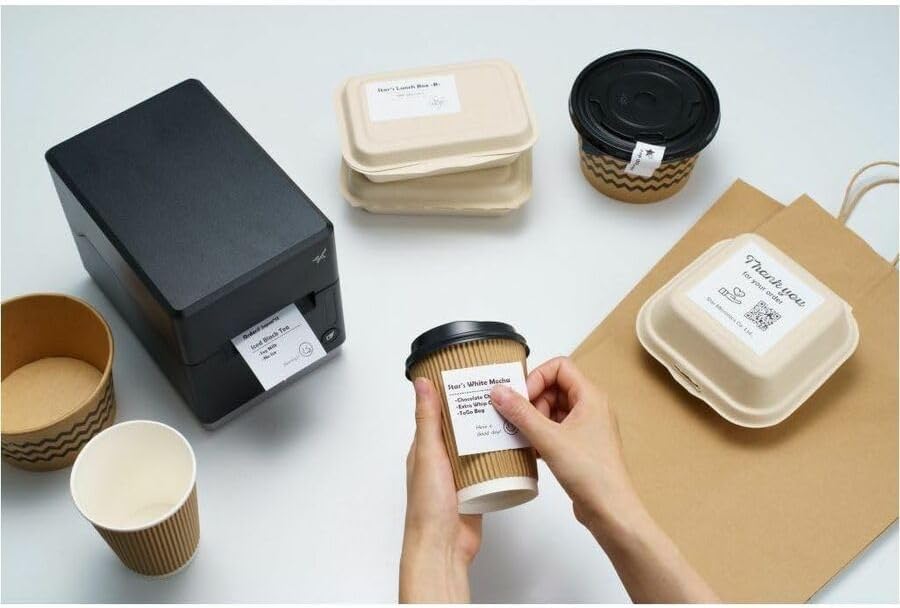
Image: A hand pressing the feed button on the mC-Label3 printer, demonstrating the printing of a 'Thank you' label.

Image: The mC-Label3 printer shown in a practical setting, printing labels for food containers and coffee cups, illustrating its versatility.
Karbantartás
1. A nyomtató tisztítása
Regular cleaning ensures optimal performance and extends the life of your printer.
- Használjon puha, szöszmentes kendőt dampened with isopropyl alcohol to clean the print head.
- Wipe down the exterior of the printer with a soft, dry cloth.
- Kerülje a súroló hatású tisztítószerek vagy oldószerek használatát.
2. Adathordozó cseréje
When the media roll is depleted, follow the media loading instructions in the Setup section to replace it.
3. Effortless Repairs
The mC-Label3 is designed for effortless, no-tools-required repairs with minimal upkeep, simplifying any necessary component replacements.
Hibaelhárítás
Ez a szakasz megoldásokat kínál a gyakori problémákra, amelyekkel találkozhat.
| Probléma | Lehetséges ok | Megoldás |
|---|---|---|
| A nyomtató nem kapcsol be | Tápkábel nincs csatlakoztatva; Probléma van a konnektorral | Győződjön meg arról, hogy a tápkábel megfelelően van csatlakoztatva; Próbáljon ki egy másik konnektort. |
| Nincs nyomtatási kimenet | Out of media; Media loaded incorrectly; Driver issue | Load new media; Re-load media correctly; Reinstall printer drivers. |
| Gyenge nyomtatási minőség | Dirty print head; Low quality media | Clean the print head; Use recommended thermal media. |
| Csatlakozási problémák | Incorrect cable connection; Bluetooth not paired; Network configuration | Check USB/Ethernet cables; Re-pair Bluetooth; Verify network settings. |
Műszaki adatok
| Funkció | Részlet |
|---|---|
| Modell neve | mC-Label3 |
| Tétel modellszáma | MCL32CBI |
| Nyomtatási technológia | Közvetlen termikus |
| Nyomtató kimenet | Monokróm |
| Maximális nyomtatási sebesség monokróm | 23 ppm |
| Maximális fekete-fehér nyomtatási felbontás | 203 DPI (203 x 203 DPI) |
| Nyomtatási média | Labels (Linerless, Die-Cut, Continuous), Thermal Receipt |
| Csatlakozási technológia | Bluetooth, Wired (USB, Ethernet) |
| Hardware Interface | USB-Ethernet |
| Kompatibilis eszközök | PC, Android, iOS |
| Vezérlő típusa | iOS, Android |
| Termék méretei | 17.0 x 14.2 x 21.1 cm (6.7" MÉ x 5.6" SZÉ x 8.3" M) |
| Tétel súlya | 7.2 font (3.27 kg) |
| Memória tárolási kapacitása | 64 MB |
| Szín | Fekete |
| Gyártó | STAR MICRONICS |
| Származási ország | Kína |
Jótállási információk
The Star Micronics mC-Label3 MCL32CBI printer comes with a manufacturer's warranty. For specific terms and conditions, please refer to the warranty card included in your package or visit the official Star Micronics webtelek.
Garancia típusa: Gyártó
Támogatás
For further assistance, technical support, or to download the latest drivers and firmware, please visit the official Star Micronics support weboldalon, vagy lépjen kapcsolatba ügyfélszolgálatukkal.
Star Micronics Official Webtelek: www.starmicronics.com
Támogatási link: www.starmicronics.com/support
Ask a question about this manual
Ask about setup, troubleshooting, compatibility, parts, safety, or missing instructions. Manuals+ will review the question and use this page’s manual context to help answer it.