
beeprt BY-480BT
BEEPRT BY-480BT Bluetooth Shipping Label Printer User Manual
Model: BY-480BT | Brand: beeprt
Bevezetés
This manual provides comprehensive instructions for setting up, operating, and maintaining your BEEPRT BY-480BT Bluetooth Shipping Label Printer. Designed for efficiency and ease of use, this thermal label printer is compatible with various e-commerce platforms and operating systems, making it an ideal solution for shipping packages and managing labels for small businesses.
Mi van a dobozban
Upon unboxing your BEEPRT BY-480BT printer, please ensure all the following components are present:
- BEEPRT BY-480BT hőcímkéző nyomtató
- USB kábel
- Tápadapter
- Címketartó
- Gyors üzembe helyezési útmutató / Felhasználói kézikönyv
- Sample Thermal Labels
- USB-A to USB-C Adapter (for Mac users)
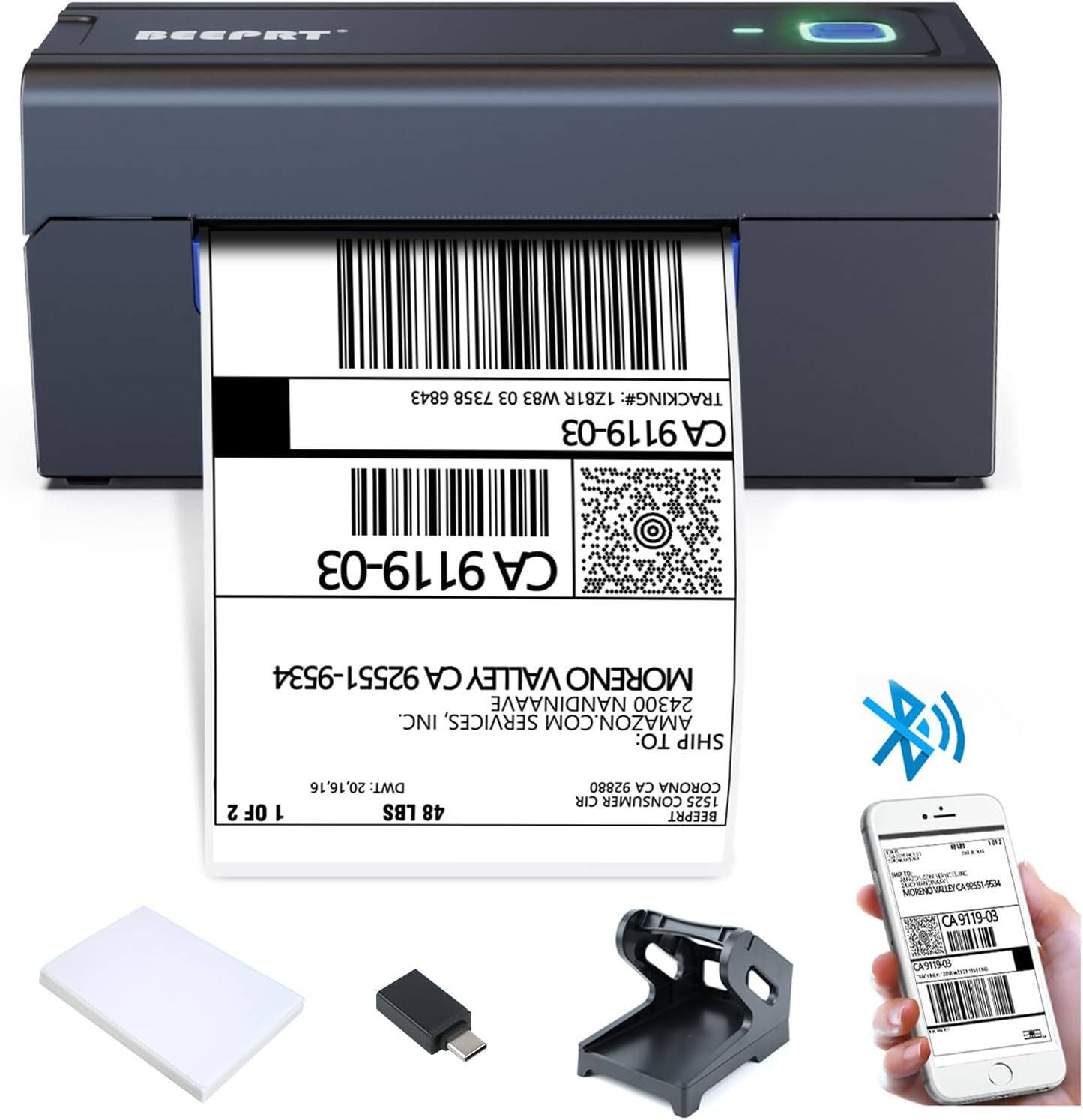
The BEEPRT BY-480BT printer shown with its essential accessories, including the label holder, USB cable, and sampa címkék.

Teljes végeview of all items included in the BEEPRT BY-480BT printer package, neatly arranged.
Beállítási útmutató
1. Címkék betöltése
The BEEPRT BY-480BT printer supports various thermal label sizes, from 1.57" to 4.3" wide. Ensure you are using direct thermal labels, as this printer does not require ink.
- Open the printer lid by pressing the release latches on the sides.
- Place the thermal labels into the label compartment. Ensure the print side (usually the smoother, brighter side) is facing upwards.
- Adjust the movable guides to fit the width of your labels snugly, without creasing őket.
- Close the printer lid securely. The printer will automatically detect the label size and calibrate.

Properly loading thermal labels into the BEEPRT BY-480BT printer for optimal printing.
This video demonstrates the process of loading labels into the BEEPRT BY-480BT printer, showing how the paper feeds and aligns automatically.
2. A nyomtató csatlakoztatása
Your BEEPRT BY-480BT printer offers multiple connectivity options:
USB Connection (Windows, Mac OS, Chrome OS)
- Csatlakoztassa a nyomtatót a számítógéphez a mellékelt USB-kábellel.
- Turn on the printer using the power switch located at the back.
- Install the printer driver from the included USB drive or download it from the official BEEPRT webtelek.
- Kövesse a képernyőn megjelenő utasításokat az illesztőprogram telepítésének befejezéséhez.

The printer connected to a laptop via USB, highlighting its broad operating system compatibility.
This video provides a step-by-step guide on how to set up the BEEPRT BY-480BT printer for Chromebook via USB connection, including extension installation.
This video demonstrates the installation process for the BEEPRT printer driver on Mac OS, guiding users through the necessary steps for successful setup.
Bluetooth Connection (Windows, iOS, Android)
For wireless printing, ensure your device has Bluetooth enabled.
- Kapcsolja be a nyomtatót. A Bluetooth jelzőfénynek villognia vagy folyamatosan kéken kell világítania.
- On your device (smartphone or PC), go to Bluetooth settings and search for available devices.
- Select "BY-480BT" or a similar name from the list. You may be prompted to enter a PIN (usually "0000").
- For iOS/Android, download the "Shipping Printer Pro" app from your app store. This app is required for printing via Bluetooth on mobile devices.
- For Windows, after pairing, you may need to check the COM port settings in Printer Properties to ensure it matches the Bluetooth port.

The printer connected wirelessly to both a laptop and a smartphone, demonstrating Bluetooth printing capabilities.
This video illustrates how to connect the BEEPRT BY-480BT printer via Bluetooth on a Windows computer, including pairing and port configuration.
Ez a videó általános képet adview of the BEEPRT Bluetooth label printer, showcasing its features and ease of use for various label printing needs.
Kezelési útmutató
Címkék nyomtatása
Once your printer is connected and labels are loaded, you can begin printing:
- Nyissa meg a dokumentumot vagy címkét file you wish to print (e.g., PDF, image).
- Válassza a „Nyomtatás” lehetőséget az alkalmazás menüjéből.
- Choose "BEEPRT BY-480BT" as your printer.
- In the print settings, ensure the paper size is set to match your labels (e.g., 4x6 inches). For optimal quality, select "Actual Size" or "100% Scale" to prevent scaling issues.
- Adjust print density and speed if necessary (higher density for darker prints, lower speed for better quality).
- Click "Print". The label will feed out automatically.

Examples of different label sizes and types compatible with the BEEPRT BY-480BT printer, showcasinsokoldalúsága.
This video demonstrates the printer in action, showing how it feeds and prints labels quickly and efficiently.
Karbantartás
A rendszeres karbantartás biztosítja az optimális teljesítményt és meghosszabbítja a nyomtató élettartamát:
- A nyomtatófej tisztítása: Use an alcohol wipe or a specialized print head cleaning pen to gently wipe the print head surface. Do this regularly to prevent residue buildup and ensure clear prints.
- A görgők tisztítása: Periodically clean the rubber rollers with a damp, lint-free cloth to remove dust or adhesive residue that might affect paper feeding.
- Por eltávolítása: Keep the printer free from dust and debris. Use compressed air to clean hard-to-reach areas.
- Megfelelő tárolás: When not in use, store the printer in a clean, dry environment away from direct sunlight and extreme temperatures.
Hibaelhárítás
Íme néhány megoldás a gyakori problémákra, amelyekkel találkozhatsz:
| Probléma | Lehetséges ok | Megoldás |
|---|---|---|
| A nyomtató nem válaszol | Power off, loose cable, driver issue, Bluetooth not connected. | Ensure printer is on and connected. Reinstall driver. Re-pair Bluetooth. |
| Blank labels / Faint prints | Labels loaded incorrectly, low print density, dirty print head. | Reload labels with print side up. Increase print density in settings. Clean print head. |
| Papírelakadás | Misaligned labels, foreign object. | Open lid, remove jammed labels carefully. Ensure guides are properly set. |
| A címkék nem megfelelően adagolódnak | Labels not thermal, misaligned guides, dirty rollers. | Use direct thermal labels. Adjust guides. Clean rollers. |
| Bluetooth connection issues on Mac/iPhone | Incorrect app usage, security settings. | Ensure "Shipping Printer Pro" app is used for mobile. Check System Preferences > Security & Privacy for driver installation. |
For more detailed troubleshooting, refer to the official user manual PDF available on the product page or contact BEEPRT support.
Műszaki adatok
| Funkció | Részlet |
|---|---|
| Márka | beeprt |
| Modell neve | BY-480BT |
| Csatlakozási technológia | USB, Bluetooth |
| Nyomtatási technológia | Termikus |
| Nyomtatási média | Címkék |
| Maximális bemeneti lapkapacitás | 72 |
| Kompatibilis eszközök | Smartphones, PC |
| Lapméret | 4x6 inches (supports 1.57" - 4.3" wide) |
| Maximális fekete-fehér nyomtatási felbontás | 203 dpi |
| Tétel súlya | 4 font |
| Termék méretei | 6 x 9 x 6.5 hüvelyk |
| Tartalmazott komponensek | Nyomtató, USB-kábel |
Garancia és támogatás
The BEEPRT BY-480BT printer comes with a limited warranty. For specific warranty terms and conditions, please refer to the documentation included with your product or contact the manufacturer directly.
Ügyfélszolgálat
If you encounter any issues or have questions not covered in this manual, please reach out to BEEPRT customer support. You can often find support contact information on the manufacturer's official website or through the seller's contact details on the platform where you purchased the product.
- Gyártó: BEEPRT
- Eladó: BEEPRT-US
- Felhasználói kézikönyv (PDF): Letöltés PDF Manual
Ask a question about this manual
Ask about setup, troubleshooting, compatibility, parts, safety, or missing instructions. Manuals+ will review the question and use this page’s manual context to help answer it.