1. Bevezetés
This manual provides essential information for the safe and efficient operation of your iFFALCON 32F2A 32-inch HD Ready Android Smart LED TV. Please read these instructions thoroughly before using the television and retain them for future reference.
The iFFALCON 32F2A is an 80 cm (32 inches) HD Ready Android Smart LED TV designed to offer a comprehensive entertainment experience. It features a 720p resolution display, integrated Android operating system, and smart functionalities like Google Assistant and Chromecast built-in.
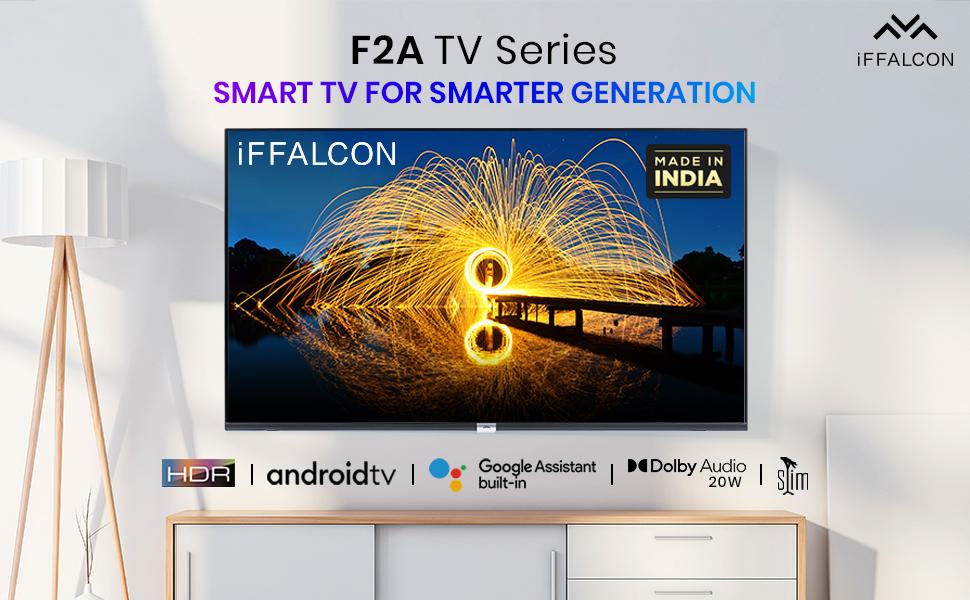
1.1. kép: Elöl view of the iFFALCON 32F2A Smart LED TV displaying the Android TV interface, alongside icons representing key features such as HDR, Android TV, Google Assistant, Micro Dimming, IPQ Engine, Chromecast built-in, AI, and Dolby Audio with 20W speakers.
2. A doboz tartalma
Verify that all components are present and undamaged upon unpacking your new television.
- 1 x iFFALCON 32F2A LED TV
- 1 x asztali állvány
- 1 x Felhasználói kézikönyv
- 1x jótállási jegy
- 1x Távirányító
- 2 db AAA elem (távirányítóhoz)
3. Beállítás
3.1 Kicsomagolás és elhelyezés
Carefully remove the TV from its packaging. It is recommended to have two people for this process. Place the TV on a stable, flat surface or mount it securely on a wall.
3.2 Az asztali állvány rögzítése
- Helyezze a tévét képernyővel lefelé egy puha, tiszta felületre a karcolások elkerülése érdekében.
- Igazítsa az állvány talpait a TV alján található megfelelő nyílásokhoz.
- Rögzítse az állvány alapjait a mellékelt csavarokkal. Győződjön meg arról, hogy szorosan meg vannak húzva.
3.3 Falra szerelés (opcionális)
If you choose to wall mount your TV, please note that the wall mount bracket is not included and must be purchased separately. Follow the instructions provided with your wall mount kit and ensure professional installation for safety.
3.4 Külső eszközök csatlakoztatása
Your iFFALCON 32F2A TV offers various connectivity options:
- HDMI portok: Csatlakoztasson Blu-ray lejátszókat, játékkonzolokat vagy set-top boxokat.
- USB port: Csatlakoztasson USB-tárolóeszközöket médialejátszáshoz.
- Ethernet port: Vezetékes internetkapcsolathoz.
- Fejhallgató-csatlakozó: Magánhallgatásra.
3.5 Tápfeszültség csatlakozás
Connect the power cord to the TV's power input and then to a suitable AC power outlet (240 Volts, 50 Watts). Ensure the power cable is securely connected.
3.6 Kezdeti bekapcsolás és beállító varázsló
After connecting power, press the power button on the TV or remote control. The TV will guide you through the initial setup wizard, including language selection, network connection (Wi-Fi or Ethernet), Google account sign-in, and channel scanning.

Image 3.1: A diagram illustrating the physical dimensions of the iFFALCON 32F2A TV, including screen size (32 inches / 79.97 cm diagonal), width (73.20 cm / 29 inch), height (48.20 cm / 19 inch), and depth (17.30 cm / 6.9 inch).
4. Használati útmutató
4.1 távirányító
The provided remote control allows you to navigate the TV's interface and access various functions. Insert the two AAA batteries (included) into the remote control, ensuring correct polarity.
- Bekapcsoló gomb: Be- vagy kikapcsolja a TV-t.
- Navigációs gombok: Use the directional pad and OK button to move through menus.
- Kötet +/-: Beállítja a hangerőt.
- Csatorna +/-: Váltja a TV-csatornákat.
- Home gomb: Visszatérés az Android TV kezdőképernyőjére.
- Vissza gomb: Visszatérés az előző képernyőre.
- Google Asszisztens gomb: Aktiválja a hangvezérlést.
- Netflix gomb: Közvetlen hozzáférés a Netflixhez.
- Amazon Prime Video gomb: Közvetlen hozzáférés az Amazon Prime Videóhoz.
- Zee5 Button: Direct access to Zee5.
- TCL Channel Button: Direct access to TCL channel.

Image 4.1: The smart remote control for the iFFALCON TV, highlighting the Google Assistant button and a dedicated hotkey for Netflix for quick access.
4.2 Android TV interfész
Your TV runs on Android 9, providing access to a wide range of apps and services. The home screen displays recommended content, installed applications, and input sources.
- Alkalmazások: Access pre-installed applications like Netflix, YouTube, Prime Video, Disney+Hotstar, Sun NXT, and Zee5. Download more from the Google Play Store.
- Bemenetek: Switch between HDMI inputs, USB, and other connected devices.
- Beállítások: Customize TV settings such as picture, sound, network, and system preferences.

Image 4.2: The iFFALCON Smart LED TV showcasing its Android TV home screen, featuring prominent app icons for Netflix, YouTube, Prime Video, and other streaming services.

Image 4.3: The iFFALCON Smart LED TV interface, illustrating the availability of popular streaming platforms such as YouTube, Prime Video, Disney+ Hotstar, SonyLIV, Zee5, ALTBalaji, Voot Select, and Eros Now.
4.3 Google Segéd
The built-in Google Assistant allows you to control your TV and smart home devices using voice commands. Press the Google Assistant button on your remote and speak into the microphone.
- Tartalom keresése: Say "Play a cartoon movie" or "Keressen rá action films."
- Control TV: Say "Turn up the volume" or "Switch to HDMI 1."
- Információk beszerzése: Ask "What's the weather today?" or "How long is Moonlight?"
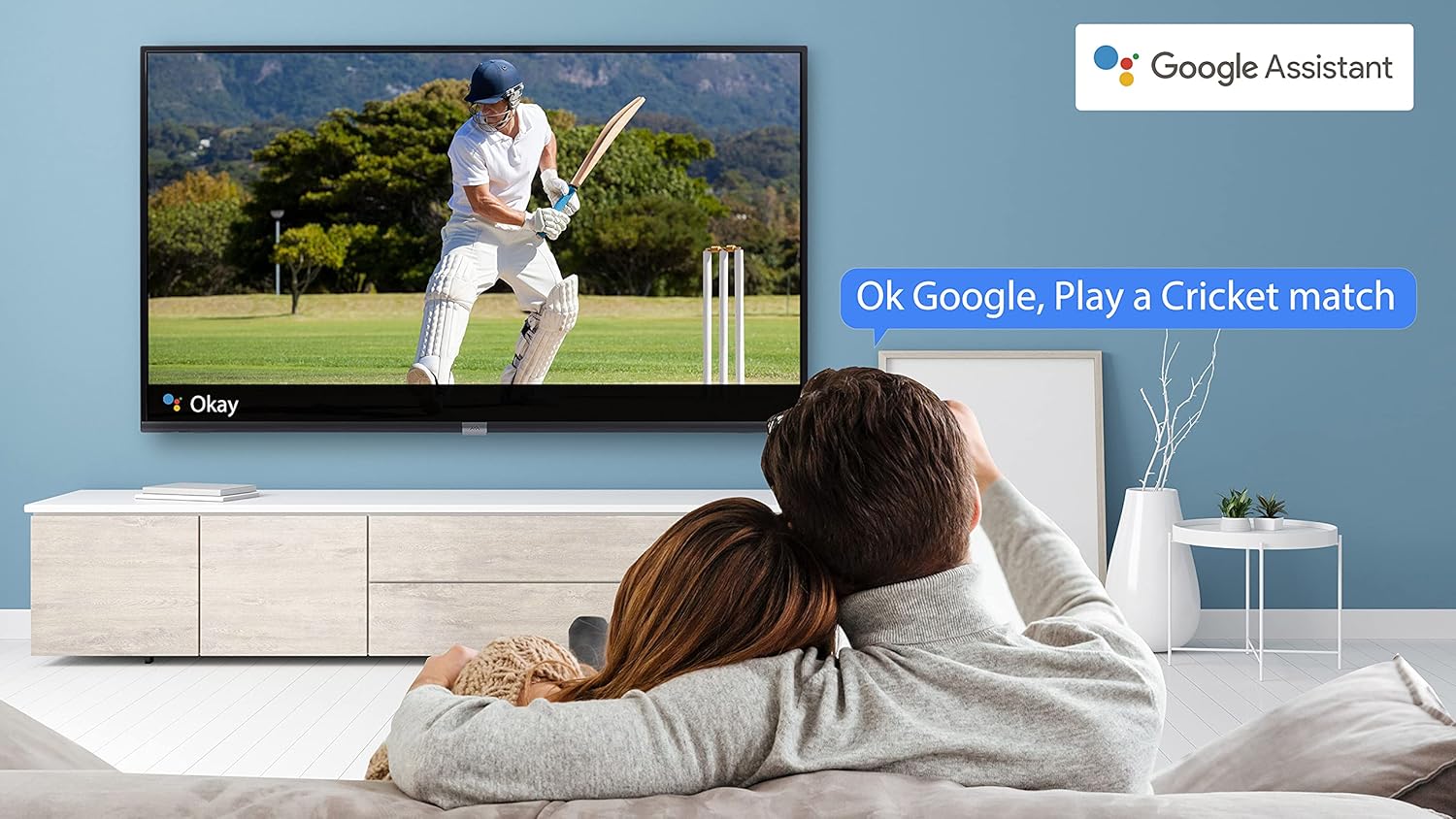
Image 4.4: A couple watching a cricket match on the iFFALCON TV, with a Google Assistant prompt bubble showing "Ok Google, Play a Cricket match," demonstrating voice control functionality.
Image 4.5: The Google Assistant logo, indicating the TV's integrated voice control capabilities.
4.4 Beépített Chromecast
Use Chromecast built-in to cast content from your compatible smartphone, tablet, or computer directly to your TV screen. Ensure your device and TV are connected to the same Wi-Fi network.

Image 4.6: A smartphone displaying a car image, with a casting icon indicating that the content is being mirrored to a larger TV screen, demonstrating the Chromecast built-in feature.
5. Főbb jellemzők
5.1 HDR (nagy dinamikatartományú)
HDR technology enhances contrast, color accuracy, and brightness, delivering a more lifelike and immersive viewing experience with greater detail in both dark and bright scenes.

Image 5.1: A split-screen comparison showing the visual difference between an image without HDR 10 (left, darker, less vibrant) and with HDR 10 (right, brighter, more detailed, and richer colors).
5.2 Mikro fényerőszabályozás
Micro Dimming analyzes the TV content in hundreds of separate zones to adjust brightness and darkness independently. This results in improved contrast and picture quality, especially in scenes with mixed light levels.
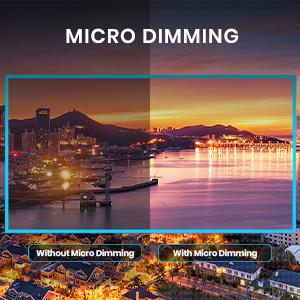
Image 5.2: A split-screen comparison demonstrating the effect of Micro Dimming, with the 'Without Micro Dimming' side appearing less vibrant and the 'With Micro Dimming' side showing enhanced contrast and color saturation in a city night scene.
5.3 IPQ Engine
The IPQ Engine (Image Quality Processing Engine) optimizes picture quality by intelligently adjusting brightness, color range, and contrast, ensuring a more vivid and accurate display.

Image 5.3: A visual representation of the IPQ Engine, highlighting its 'High Brightness Precision Control Technology' and 'Intelligent Color Range Control Technology' for optimized picture quality.
5.4 Dolby Audio
Experience rich, clear, and powerful sound with Dolby Audio. This technology enhances the audio output, providing an immersive listening experience for movies, music, and games.

Image 5.4: The Dolby Audio logo, signifying enhanced sound quality and an immersive audio experience.
5.5 Smart Volume
Smart Volume automatically adjusts the sound level to prevent sudden changes in volume, such as during commercials or when switching channels, ensuring a consistent listening experience.

Image 5.5: An illustration of the Smart Volume feature, showing how it maintains consistent audio levels across different content types, represented by varying sound wave patterns.
5.6 Sport mód
Sports Mode optimizes picture and sound settings for sports content, enhancing motion clarity and audio to provide a more engaging viewélményt nyújt élő sporteseményekhez.

Image 5.6: A split-screen comparison of a cricket player, showing the 'Without Sports Mode' side with standard clarity and the 'With Sports Mode' side with enhanced motion and detail, indicated by a playback bar.
5.7 Slim Design
The iFFALCON 32F2A features a slim design, allowing it to blend seamlessly into various living spaces and offering a modern aesthetic.

Image 5.7: An illustration emphasizing the slim profile of the iFFALCON TV, with a hand demonstrating its thinness.
6. Karbantartás
6.1 A képernyő tisztítása
Óvatosan törölje át a képernyőt egy puha, szöszmentes ruhával. Makacs foltok esetén enyhén törölje átampTörölje át a kendőt vízzel vagy speciális képernyőtisztítóval. Kerülje az erős vegyszerek vagy súrolószerek használatát.
6.2 A szekrény tisztítása
A TV-készülék burkolatát puha, száraz ruhával törölje át. Ne használjon folyékony tisztítószereket közvetlenül a burkolaton.
6.3 A tápkábel ápolása
Rendszeresen ellenőrizze a tápkábelt sérülések szempontjából. Ne helyezzen nehéz tárgyakat a kábelre, és ne tegye ki túlzott hőhatásnak.
7. Hibaelhárítás
Ha problémákat tapasztal a tévékészülékével, tekintse meg az alábbi gyakori problémákat és megoldásokat:
| Probléma | Lehetséges ok | Megoldás |
|---|---|---|
| Nincs erő | Tápkábel kihúzva, konnektor probléma | Győződjön meg arról, hogy a tápkábel megfelelően van csatlakoztatva. Ellenőrizze, hogy a konnektor működik-e. |
| Nincs kép, de van hang | Incorrect input source, faulty cable | Verify the correct input source is selected. Check HDMI/AV cable connections. |
| Nincs hang, de a kép van | Volume muted or too low, audio settings issue | Növelje a hangerőt. Ellenőrizze a hangkimeneti beállításokat a TV menüjében. |
| A távirányító nem működik | Lemerült elemek, akadály, a távirányító hatótávolságon kívül van | Cserélje ki az elemeket. Távolítsa el az akadályokat a távirányító és a TV közül. Győződjön meg arról, hogy a távirányító a hatótávolságon belül van. |
| Nem lehet csatlakozni a Wi-Fi-hez | Incorrect password, router issue, TV too far from router | Re-enter Wi-Fi password. Restart router. Move TV closer to router or use Ethernet. |
Ha a probléma a megoldások kipróbálása után is fennáll, kérjük, vegye fel a kapcsolatot az ügyfélszolgálattal.
8. Műszaki adatok
Detailed technical specifications for the iFFALCON 32F2A Smart LED TV:
| Funkció | Specifikáció |
|---|---|
| Márka | iFFALCON |
| Modell neve | 32F2A |
| Képernyőméret | 32 hüvelyk (80 cm) |
| Kijelző technológia | LED, A+ Grade Panel |
| Felbontás | HD Ready (1366 x 768 pixel) |
| Frissítési gyakoriság | 60 Hz |
| Viewing Angle | 178 fok |
| Képarány | 16:9 |
| Kép kontrasztaránya | 3000:1 |
| Operációs rendszer | Android |
| Telepített RAM memória mérete | 1 GB |
| Digitális tárolási kapacitás | 8 GB |
| Grafikus társprocesszor | Mali470x2 |
| Audio Wattage | 16 watt |
| Hangszóró térhatású hang | Dolby Audio |
| Csatlakozási technológia | Wi-Fi, Ethernet, HDMI, USB |
| Összes USB port | 1 |
| Áramforrás | AC |
| Voltage | 240 Volt |
| Wattage | 50 watt |
| Termék méretei | 48.2 x 73.2 x 18.3 cm |
| Tétel súlya | 3.9 kg |
9. Garancia és támogatás
Your iFFALCON 32F2A TV comes with a warranty. Please refer to the included Warranty Card for detailed terms and conditions, including the warranty period and coverage.
For technical assistance, service requests, or further inquiries, please visit the official iFFALCON support website or contact their customer service helpline. Contact information can typically be found on the Warranty Card or the manufacturer's official webtelek.