
SYSTEMTREFF 20192505-a
SYSTEMTREFF PC AMD Ryzen 7 5700G felhasználói kézikönyv
Model: Ed2505 (20192505-a)
Bevezetés
This manual provides essential information for setting up, operating, maintaining, and troubleshooting your SYSTEMTREFF PC AMD Ryzen 7 5700G. Please read this manual thoroughly before using your new computer to ensure proper functionality and longevity.

Kép: Elülső oldal view of the SYSTEMTREFF PC, showcasing its transparent side panel and illuminated internal components.
Beállítási útmutató
Follow these steps to set up your SYSTEMTREFF PC.
1. Kicsomagolás és elhelyezés
- Óvatosan vegye ki a számítógépet a csomagolásból. Őrizze meg az összes csomagolóanyagot későbbi szállítás vagy szervizelés céljából.
- Place the PC on a stable, flat surface with adequate ventilation. Ensure there is sufficient space around the computer for airflow, especially at the front, rear, and top vents.
- Avoid placing the PC near heat sources, in direct sunlight, or in areas with excessive dust or humidity.

Kép: Különböző views of the PC case illustrating its physical dimensions for proper placement.
2. Perifériák csatlakoztatása
Connect your monitor, keyboard, mouse, and other devices to the appropriate ports.
- Monitor: Connect your monitor to the HDMI or DVI-D port on the rear of the PC. Ensure the cable is securely fastened.
- Billentyűzet és egér: Connect your USB keyboard and mouse to any available USB ports (USB 2.0 or USB 3.0/3.2). PS/2 ports are also available for compatible devices.
- Hang: Connect speakers or headphones to the audio output jack (green) and a microphone to the microphone input jack (pink) on the rear or front panel.
- Hálózat: For a wired connection, connect an Ethernet cable from your router to the RJ45 LAN port on the rear. For wireless connectivity, ensure the included USB Wi-Fi stick is connected.
- Hatalom: Csatlakoztassa a tápkábelt a számítógép hátulján található tápegységhez (PSU), majd a másik végét dugja be egy földelt elektromos aljzatba.

Kép: Részletes view of the available front and rear ports for connecting various peripherals.
Kezelési útmutató
1. Első indítás és kezdeti beállítás
- After connecting all peripherals, press the power button located on the top front of the PC.
- The system will boot into Windows 10 Pro. Follow the on-screen instructions to complete the initial Windows setup, including region, language, and user account creation.
- Drivers for all components are pre-installed, ensuring a plug-and-play experience.
2. Alapvető használat
- Be-/kikapcsolás: Press the power button to turn on. To shut down, click the Start button in Windows, then select Power > Shut down.
- Újraindítás: A rendszer újraindításához kattintson a Start gombra, majd válassza a Főkapcsoló > Újraindítás lehetőséget.
- Alvó mód: A rendszer alvó üzemmódba kapcsolásához kattintson a Start gombra, majd válassza a Főkapcsoló > Alvó üzemmód lehetőséget.
- Csatlakozás: The PC supports Wi-Fi and Bluetooth for wireless connections. Use the Windows settings to connect to wireless networks or pair Bluetooth devices.

Kép: Plamples of typical usage scenarios for the PC, including productivity, entertainment, and gaming.
Karbantartás
Regular maintenance helps ensure the optimal performance and longevity of your PC.
1. Tisztítás
- Külső: Használjon puha, damp cloth to clean the exterior of the case. Avoid abrasive cleaners.
- Por: Periodically clean dust from the vents and fans using compressed air. Ensure the PC is powered off and unplugged before cleaning. The case features a mesh front and side panel for improved airflow and dust filtration.

Image: Features of the PC case designed for efficient cooling and maintenance access.
2. Szoftverfrissítések
- Rendszeresen ellenőrizze és telepítse a Windows frissítéseket a rendszer stabilitásának és biztonságának biztosítása érdekében.
- Keep your graphics drivers updated for optimal performance, especially for gaming and multimedia applications.
Hibaelhárítás
Ez a szakasz a gyakori problémákkal foglalkozik, amelyekkel találkozhat.
Nincs erő
- Győződjön meg arról, hogy a tápkábel megfelelően csatlakozik mind a számítógéphez, mind a konnektorhoz.
- Verify that the power switch on the back of the power supply unit (PSU) is in the 'On' position.
- Tesztelje a konnektort egy másik eszközzel, hogy megbizonyosodjon a működéséről.
Nincs kép a monitoron
- Check that the monitor is powered on and its video cable is securely connected to the PC's HDMI or DVI-D port.
- Ensure the monitor input source is correctly selected (e.g., HDMI 1, DVI).
- If you have multiple display outputs, try connecting to a different port.
Rendszer lassulása vagy lefagyása
- Zárja be a háttérben futó felesleges alkalmazásokat.
- Check for sufficient free space on your drives, especially the C: drive (SSD).
- Futtasson víruskeresést a rosszindulatú programok ellenőrzéséhez.
- Ensure the PC has adequate ventilation and is not overheating.
Műszaki adatok
Detailed technical specifications of your SYSTEMTREFF PC.
| Összetevő | Specifikáció |
|---|---|
| Processzor | AMD Ryzen 7 5700G (8 Cores, up to 4.6 GHz Turbo) |
| Grafika | Integrated AMD Radeon RX Vega 8 (4GB, 2000 MHz, DirectX 12.1) |
| RAM | 32 GB-os DDR4 3200 MHz-es memória |
| Tárolás | 1 TB-os M.2 NVMe SSD + 2 TB-os merevlemez |
| Operációs rendszer | Windows 10 Pro (64-bit, pre-installed) |
| Tápegység | 500 Watt |
| Kapcsolódás | Wi-Fi, Bluetooth, Gigabit LAN (RJ45) |
| Elülső portok | 1x USB 3.0, 2x USB 2.0, Audio be/ki |
| Hátsó nyílások | HDMI 4K HD, DVI-D, PS/2, 4x USB 3.2, 2x USB 2.0, HD 7.1 Sound, RJ45 LAN |
| Méretek (HxSzxM) | 45 x 20.5 x 38.5 cm |
| Súly | 12 kg |

Image: Visual summary of the PC's core performance components.


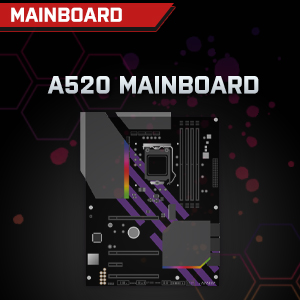

Image: Individual component representations for CPU, RAM, Graphics, Storage, Mainboard, and Power Supply.
Garancia és támogatás
SYSTEMTREFF is committed to providing excellent customer service.
- Gyártói garancia: Your SYSTEMTREFF PC comes with a 36-month (3-year) manufacturer's warranty. This warranty covers defects in materials and workmanship under normal use.
- Minőségellenőrzés: All individually assembled PCs undergo a quality control check before shipment.
- Visszaküldés: In case of issues, SYSTEMTREFF offers free returns.
- Kapcsolatfelvétel az ügyfélszolgálattal: For technical assistance, warranty claims, or any other inquiries, please contact SYSTEMTREFF customer support. Contact details can typically be found on the manufacturer's official weba weboldalon vagy a vásárláshoz mellékelt dokumentációban.

Image: Information regarding warranty, ease of setup, and customer support availability.